---
title: "Accesses"
description: "Share some of your assistants with people outside your workspace, through an MCP server and an HTTP API, open or protected by keys, with credit ceilings."
canonical: "https://lookio.app/docs/guides/accesses"
updated: "2026-11-08"
---
# Accesses
An access lets people outside your workspace ask some of your assistants: your customers, a partner, the agents of another team. They get an address, not an account. **Your workspace pays** for every question.
```mermaid title="An access between your assistants and the people you share them with"
flowchart LR
subgraph Outside["Outside your workspace"]
C1["Claude, ChatGPT, Cursor
(MCP)"]
C2["A partner's code
(HTTP API)"]
end
subgraph Yours["Your workspace"]
AC["Access
keys, modes, ceilings"]
A1["Support assistant"]
A2["Sales assistant"]
end
C1 --> AC
C2 --> AC
AC --> A1
AC --> A2
```
Callers see each assistant's name and the description that you write. They never see its context, its guidelines or its resources. Only admins manage accesses.
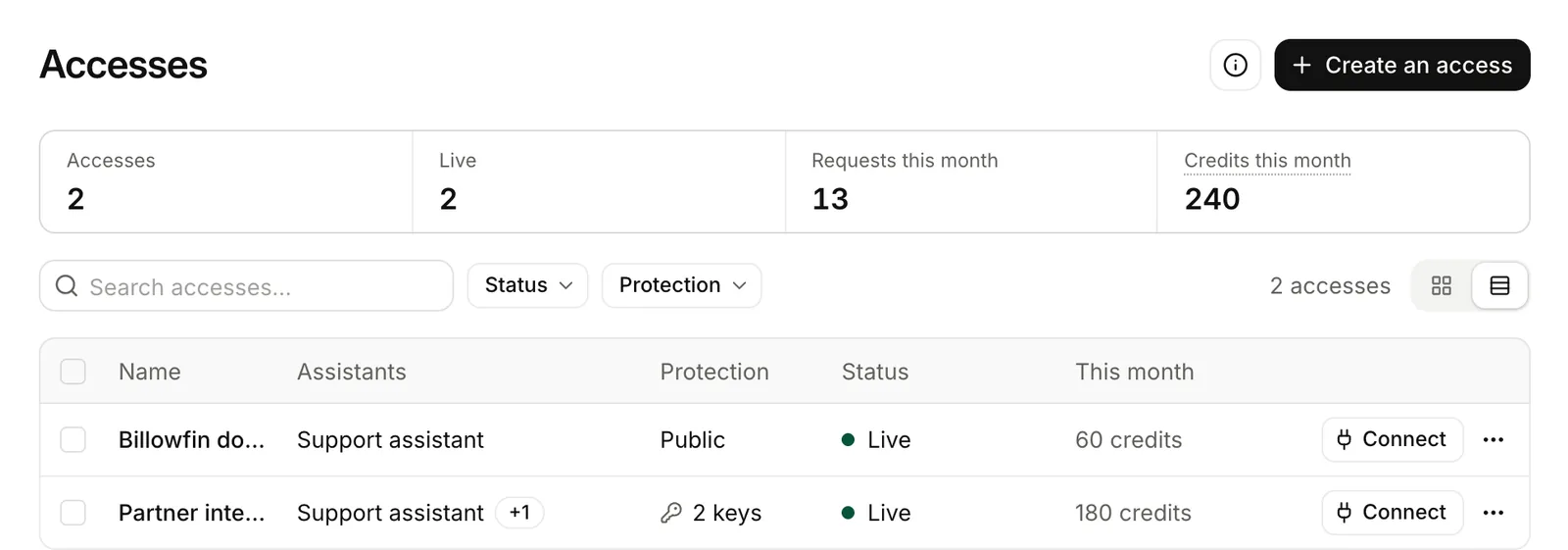
_Accesses: one row per access, with its assistants, protection and status._
## Create an access
1. **Name it and pick the assistants**
Open **Accesses**, then **Create an access**. Give it a name and choose up to 20 assistants.
2. **Describe each assistant**
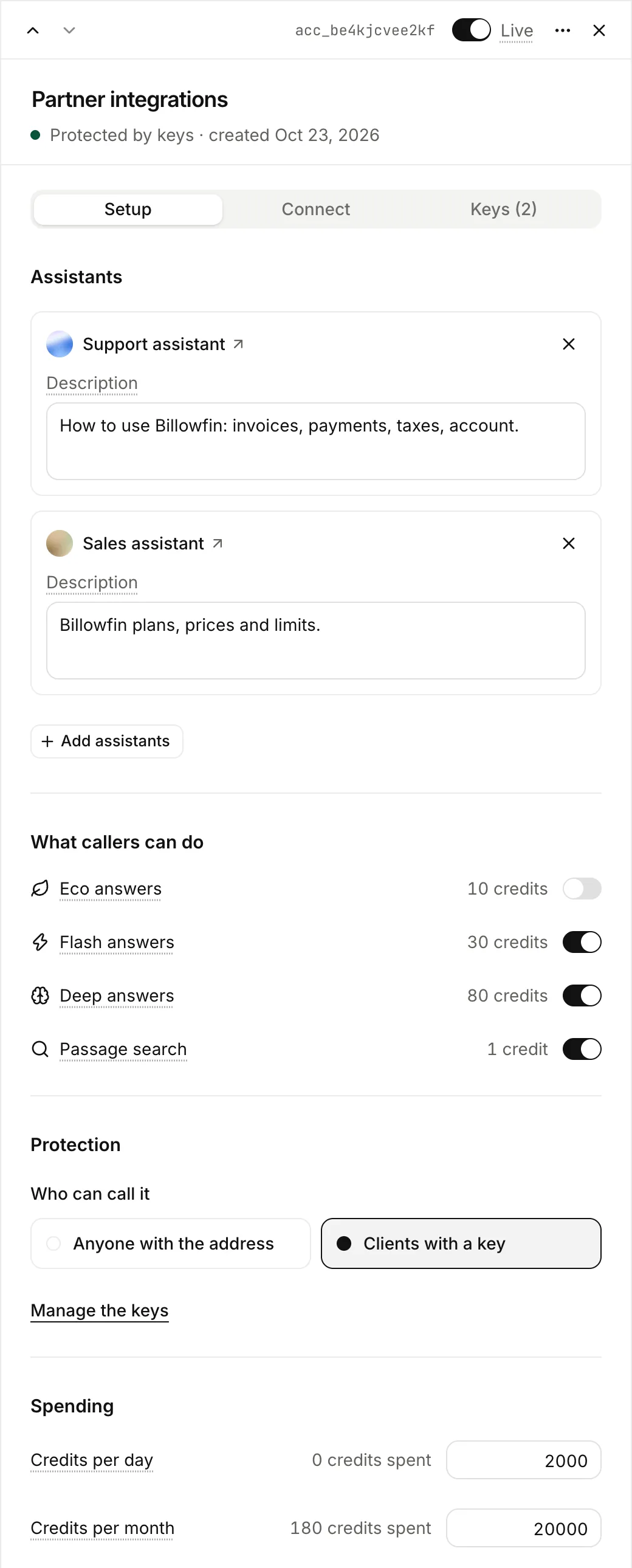
In the **Setup** tab, write what each assistant answers, and from what. Callers and their AI tools use this description to pick an assistant.
3. **Choose what callers can do and spend**
Turn on the query modes that you accept: Eco, Flash and Deep, at their usual prices. You can also turn on passage search, at 1 credit. Set a ceiling in credits per day and per month. Past a ceiling, Lookio refuses calls until the next day or month.
4. **Choose the protection**
**Anyone with the address**, or **Clients with a key** (Pro plan). With keys, each client gets its own key and its own ceilings. You can revoke one key and keep the others.
## Give the address to your callers
Open the access, then **Connect**. You get two addresses and the setup for each kind of client.
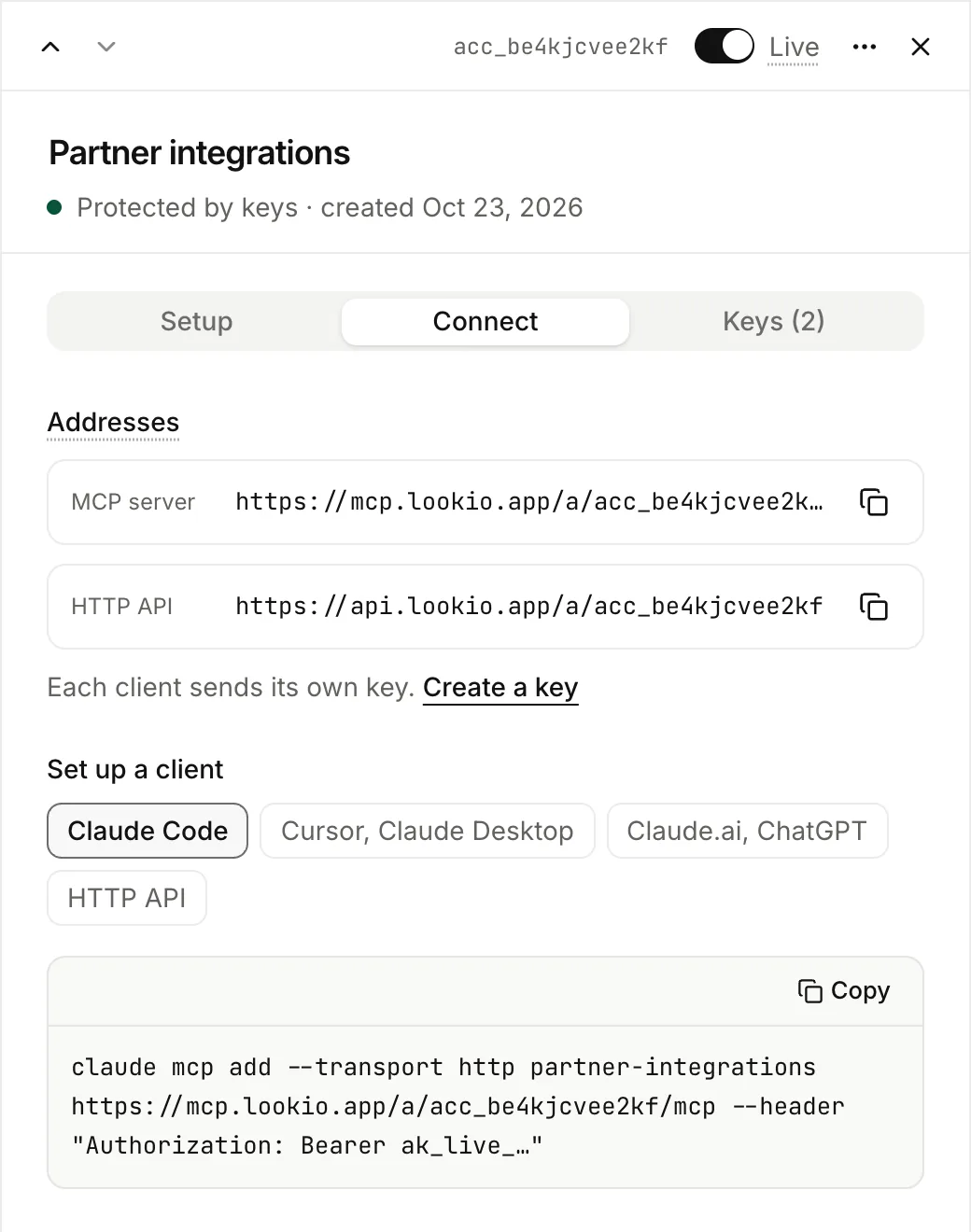
_Connect: the MCP server and the HTTP API, then the setup for each client._
| Address | Give it to |
| -------------------------------------------------------- | ------------------------------------------------------------------------- |
| **MCP server**, `https://mcp.lookio.app/a/ACCESS_ID/mcp` | People who use Claude Code, Cursor, Claude Desktop, Claude.ai or ChatGPT. |
| **HTTP API**, `https://api.lookio.app/a/ACCESS_ID` | Developers who call it from their code or an automation tool. |
Claude.ai and ChatGPT cannot send a header, so they reach public accesses only. The person adds a custom connector and pastes the MCP server address. The **Claude.ai, ChatGPT** choice in **Connect** gives the steps to send them.
The HTTP API address describes itself. An agent that opens it gets the assistants, what it may do, the prices and the endpoints. See [Call an access](/docs/developers/accesses).
## Keys
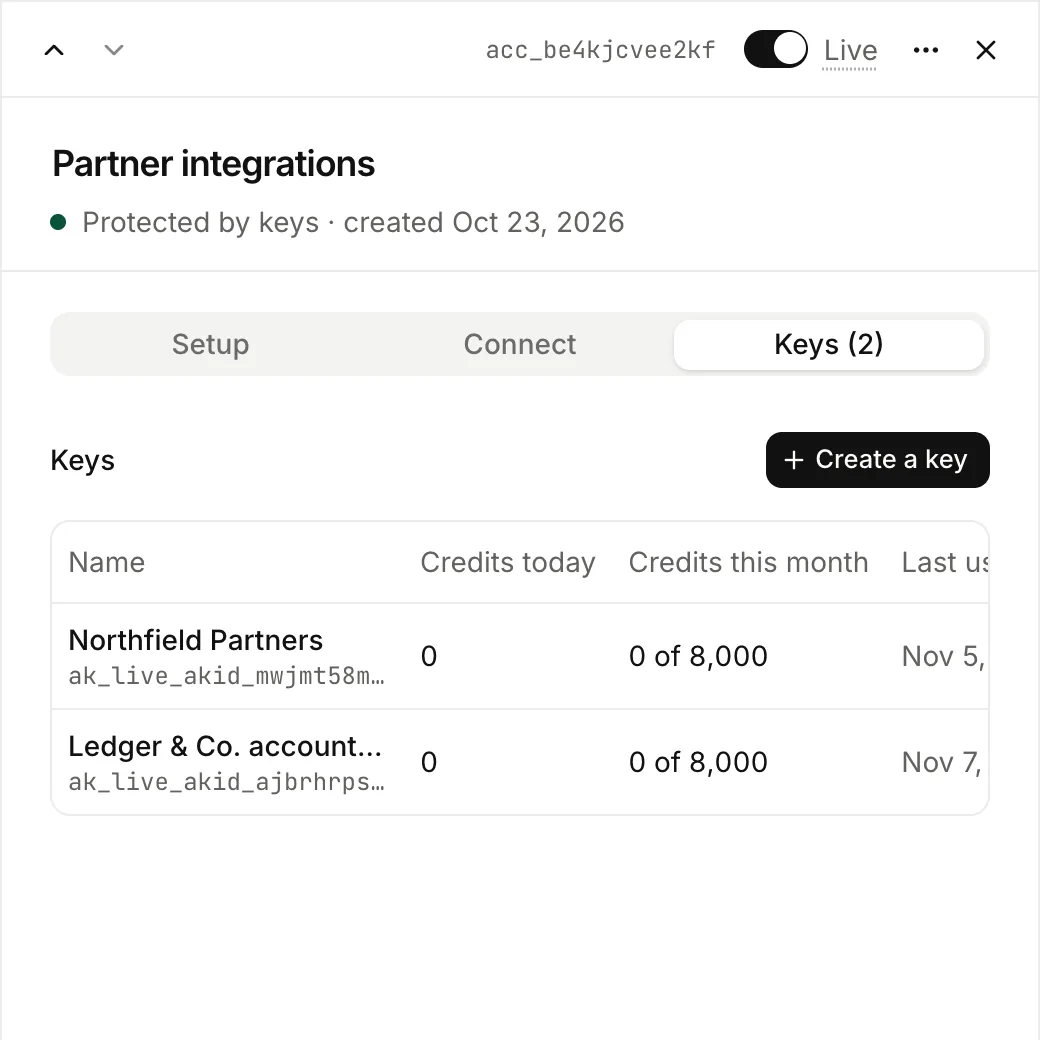
With **Clients with a key**, open the **Keys** tab and create one key per client. Lookio shows a key once. The client sends it as `Authorization: Bearer ak_live_…`.
From the API, the CLI and MCP: [`lookio accesses`](/docs/developers/cli/commands#accesses) and the [access tools](/docs/developers/mcp/standard-tools#accesses).
## Follow what it spends
Questions through an access show in **Logs** and **Usage**, with the name of the access. In Logs, filter on the channel MCP or API.
## Turn it off
The **Live** switch, at the top of the sheet, stops every call at once and keeps the settings. **Delete access**, in the **⋯** menu, removes it and revokes its keys permanently. What it spent stays in Usage.