
In many n8n workflows, you’ll want to retrieve data from a specific knowledge base before letting an AI leverage that knowledge.
Take the example of a customer support chatbot built in n8n using its native chat trigger and widgets. You definitely don’t want a generic LLM answering questions about your product; the AI needs to know how your product works. This is a classic use case where you need to connect your knowledge base to the AI agent.
There are multiple ways to get there.
The knowledge base in the LLM’s context window
If your knowledge base is quite short (just a few pages of text), you could directly put it all in the context window of the agent. That way, for every query, it will access the entire knowledge base and have the relevant context to answer the user.
However, in many cases, the knowledge base is significant—consisting of dozens, hundreds, or even thousands of pages. Putting all of this into the context window won’t work well for several reasons:
- First, models have context window limits. Some accept 120k tokens, some 200k, some 1 million. If your knowledge base is bigger than that, you won’t have any space left to pass the actual user prompt.
- You pay for input tokens (although they are cheaper than output tokens). For every single AI query, you would be paying to process the full knowledge base that’s passed as an input.
- Another reason is that LLM performance and accuracy tend to decrease as the context window grows. You can think of it as the model getting overwhelmed with too much information, making it less effective at providing reliable answers.
Introducing RAG (Retrieval-Augmented Generation)
This is where RAG becomes incredibly useful. Basically, RAG helps you find the most relevant parts of your knowledge base and feeds only those pieces to your AI steps or agents. This gives them the right context to answer a user’s query without being overwhelmed by unrelated information.
Here is Nvidia’s definition of RAG:
Retrieval-augmented generation (RAG) is an AI technique where an external data source is connected to a large language model (LLM) to generate domain-specific or the most up-to-date responses in real time.
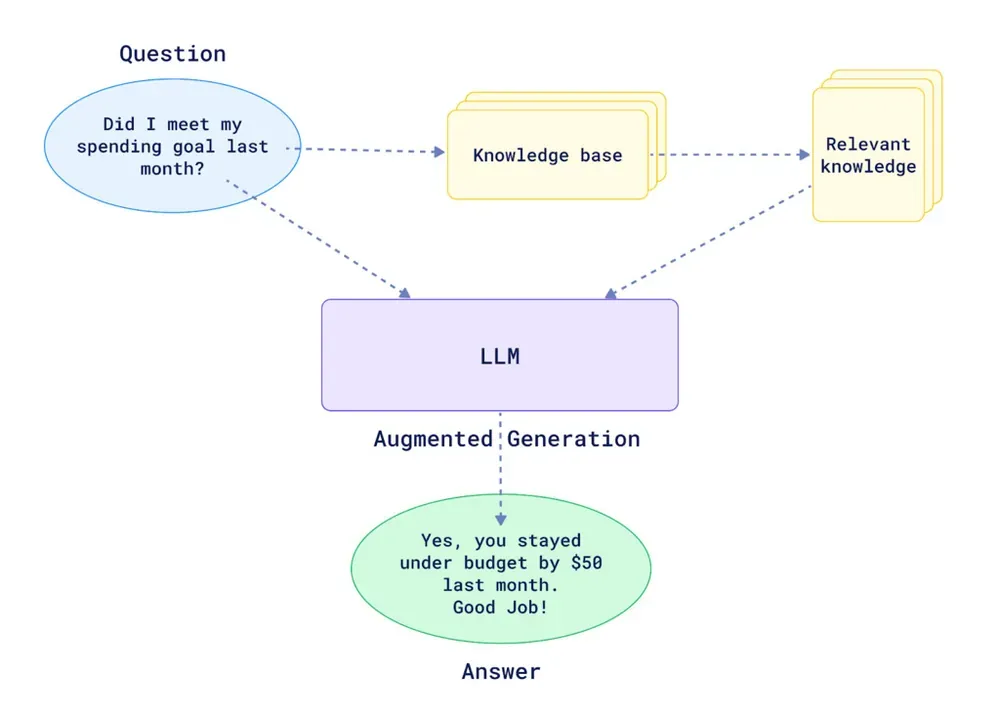
If you want to build your own RAG system within n8n, you’ll have to implement two main flows:
RAG Data Pipeline
The first step is getting your documents into a vector store (also called a vector database).
NB: A vector store is a specialized data storage system that holds and indexes high-dimensional vectors, enabling fast similarity searches and retrieval operations for AI and machine learning applications.
n8n natively integrates with multiple vector store providers, to name a few: Qdrant, Pinecone, Supabase…
You’ll need an n8n workflow that gets the text from your documents. If they are in PDFs, you’ll first have to extract the text. Then, you’ll use a node that inserts documents into the vector store provider you have selected. In this node, you can select your embedding model from providers like OpenAI or Mistral, and you can also define your chunking strategy (e.g., splitting the text every 1000 characters with a 200-character overlap).
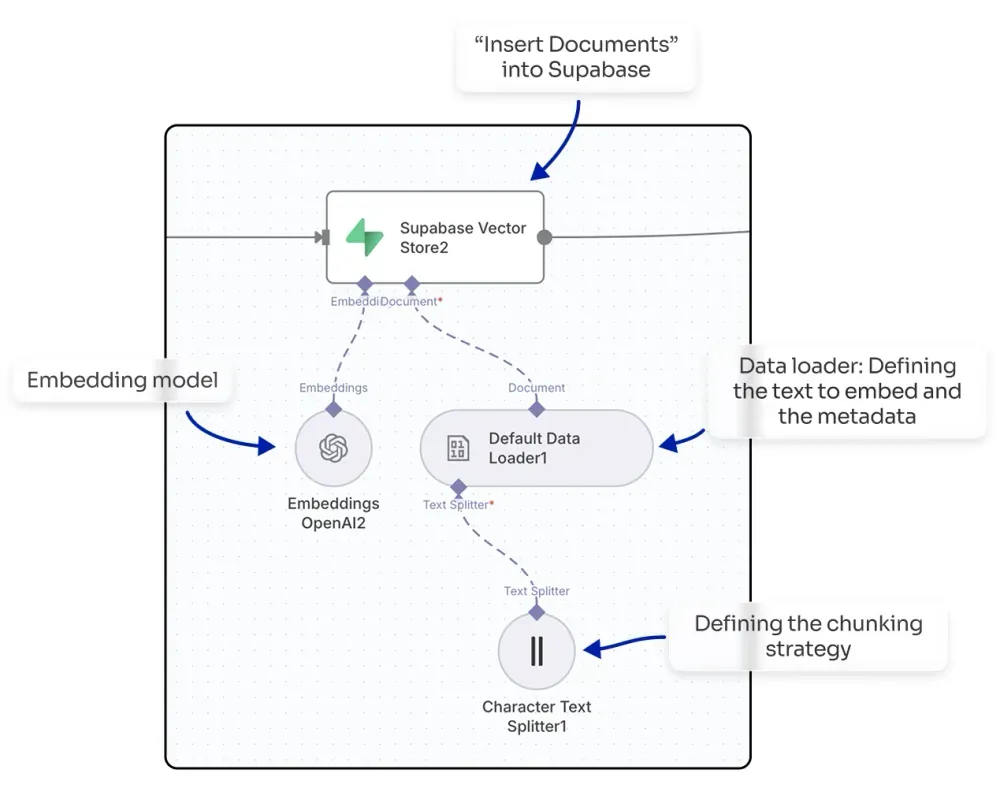
By doing this, you will embed your knowledge base, making it ready to be queried within your n8n workflows.
Knowledge Retrieval
To query your vector store and get the top-matching chunks, you can use a vector store as an agent tool, which will automatically find the relevant chunks for the agent to use. Alternatively, you could build more advanced flows where your agent calls a sub-workflow to process the query in a more sophisticated way (e.g., enabling multi-query or applying score thresholds to filter chunks before sending them to the agent).
You don’t always have to use RAG in an agentic context. You can also use it to power a search engine, where the RAG approach helps you find top results for a query without requiring an LLM to reprocess the output.
Introducing Lookio: The easiest way to implement powerful RAG
Even though n8n provides templates to get started with RAG—covering both the data pipeline and querying—implementing a highly reliable RAG system is not an easy task.
Common challenges of implementing RAG systems in n8n
There are countless challenges that play a role, for example:
- Supporting different formats for your knowledge base
- The way you clean up your data before embedding it
- The chunking and embedding strategy
- Storing the right metadata for each chunk
- Ensuring high-quality retrieval
- Implementing multi-query logic to handle complex questions
- For advanced workflows, maintaining speed of execution to not slow your agent down
- Quoting the sources in the final output
And for that, Lookio is the best solution if you want a highly reliable and robust RAG system that’s extremely easy to configure, without spending weeks deep-diving into optimization techniques.
How to configure Lookio
Lookio allows you to create highly reliable AI Assistants on top of your resources, and then query them via API within your n8n workflows. The setup is designed to be straightforward and fast.
Here’s how you get it done in three simple steps:
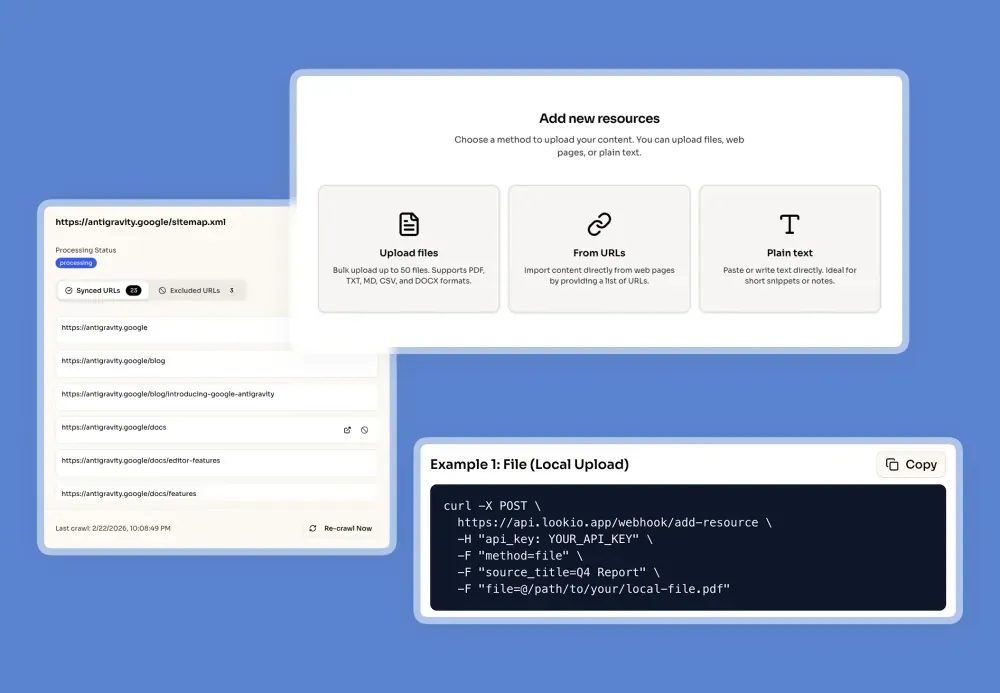
- Consolidate and Upload Your Knowledge: First, gather all your knowledge sources—product documentation, internal research, customer quotes, etc. Then, create a free Lookio account at lookio.app and head to the “Resources” page. You can upload PDFs, TXT files, paste text directly, or sync entire Sitemaps (e.g.,
yoursite.com/sitemap.xml) to keep your website content always up to date. To give you full control at scale, Lookio provides Exclusion RegEx to precisely target only the pages you want (e.g., only including the latest version or specific language folders). Don’t know RegEx? Our built-in AI RegEx Helper writes those expressions for you based on your simple instructions. Give each resource a clear name and add a source URL, which allows your Assistant to cite its sources later.
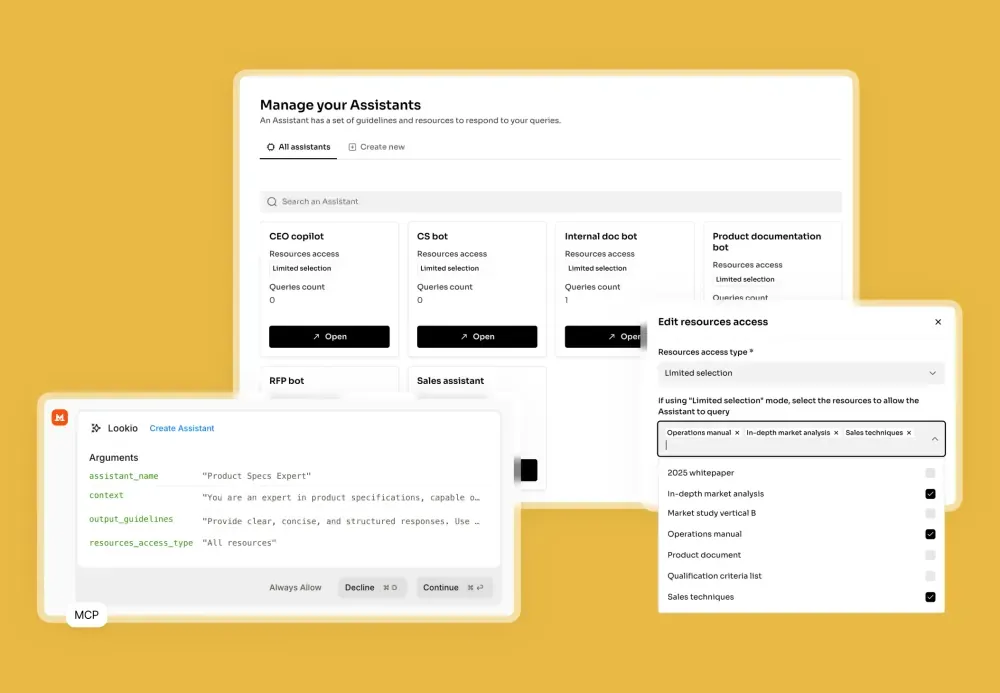
- Create Your Assistant: Next, go to the “Assistants” page to build your AI. Give it a clear name and describe its purpose in the context field (e.g., “Customer support assistant for Product X”). You can also set output guidelines, like specifying the language (e.g., British English) or tone (e.g., concise and friendly). Finally, select which of your uploaded resources this Assistant should have access to.
- Get Your API Key: The final configuration step is to navigate to the API key page and create a new key. You will need this key to connect Lookio to your n8n workflows.
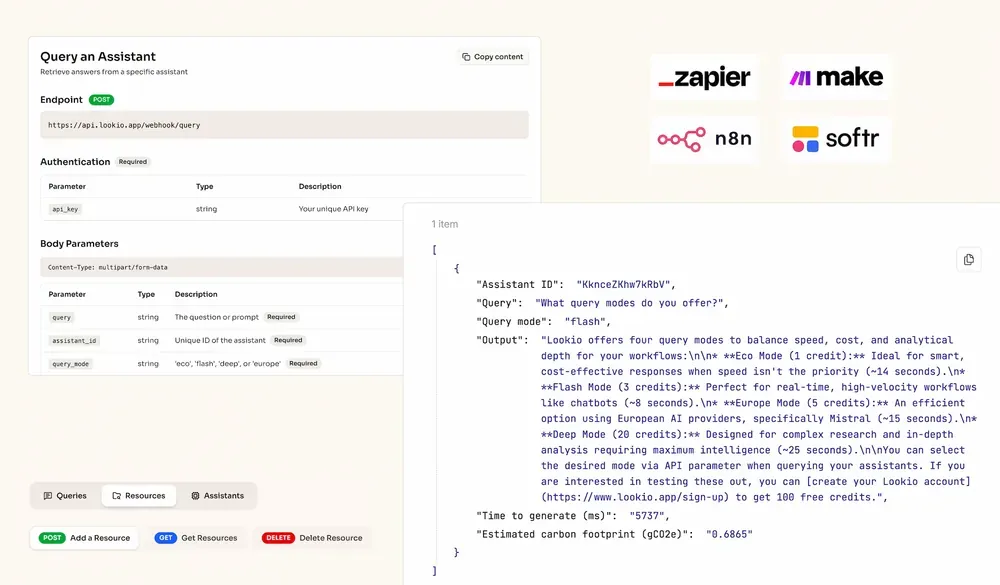
This setup allows any application or workflow to become “knowledge-aware” by simply sending a query and receiving a high-quality, sourced response.
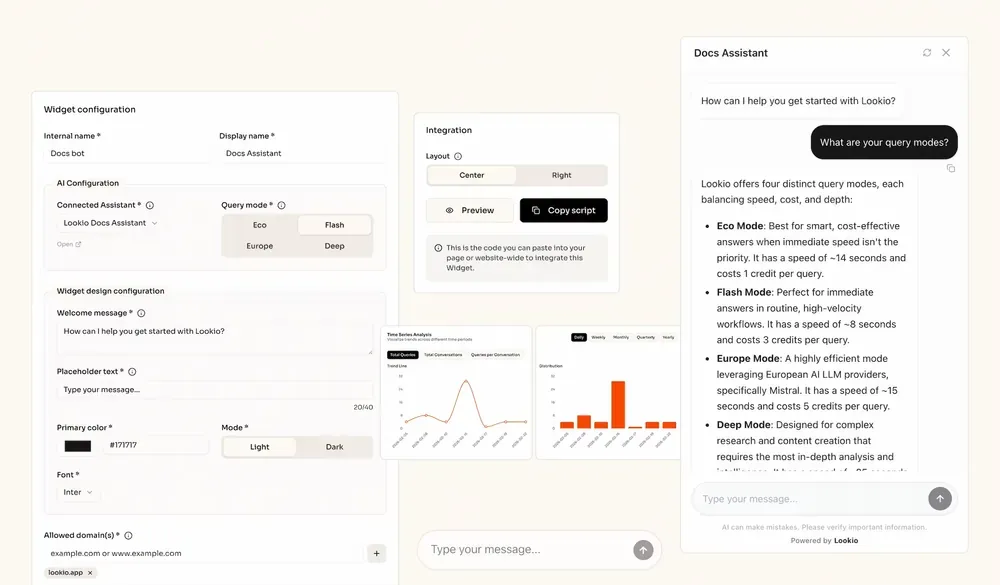
And that’s it. Your powerful, custom RAG system is ready to be integrated.
Integrating Lookio Assistants into your n8n workflows
Our smart Assistant is now ready to be called from any of your workflows. Lookio is an API-first solution, making it a perfect fit for n8n.
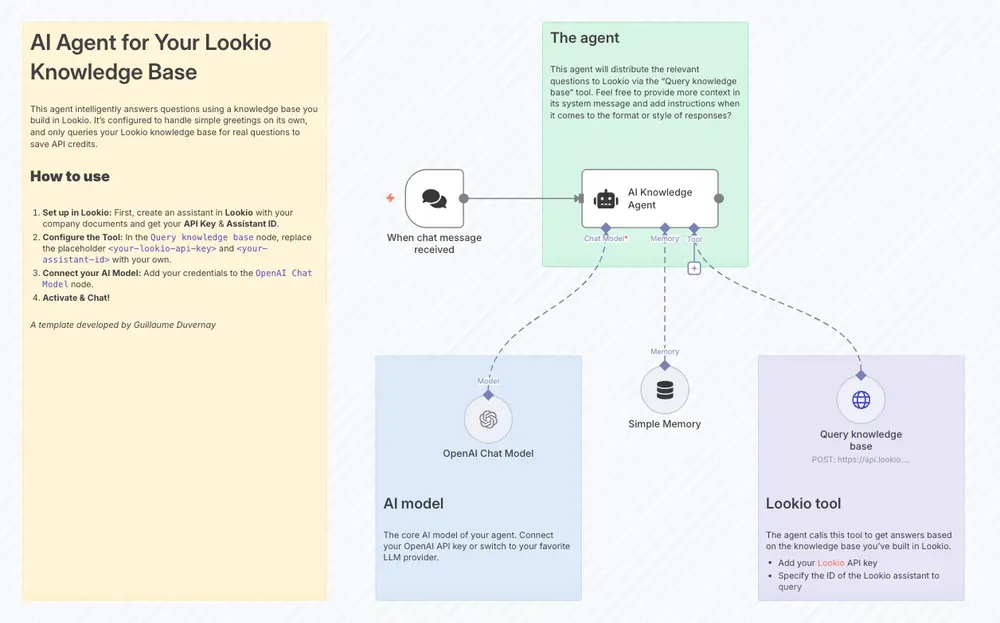
You’ll use n8n’s native HTTP Request node to query your Lookio Assistant. Here’s how to configure it:
- Method:
POST - URL:
https://api.lookio.app/v1/query - Authentication:
Header Auth- Name:
api_key - Value: Paste your API key from Lookio here.
- Name:
- Body Content Type:
JSON - Body Parameters: Click “Add Expression” and set up the JSON body. You’ll typically use expressions to pass data from previous nodes.
{
  "query": "{{ $json.user_query }}",
  "assistant_id": "YOUR_ASSISTANT_ID",
  "query_mode": "deep"
}
Let’s break down the body:
query: This is where the user’s question goes. In an n8n workflow, you’d link this to the output of a previous node, like{{ $json.user_query }}from a chat trigger.assistant_id: ReplaceYOUR_ASSISTANT_IDwith the actual ID of the Lookio Assistant you want to query.query_mode: Lookio offers two modes."flash"is the fastest and is ideal for time-sensitive tasks like real-time chatbots (costs 3 credits)."deep"is the smartest mode, which we recommend for complex queries where quality is the top priority (costs 10 credits).
Once you’ve set this up, your n8n workflow can send any query to Lookio and receive a high-quality, sourced answer back from your private knowledge base, ready to be used in the next step of your automation.
Try it yourself with our n8n templates
To help you get started even faster, we’ve published a couple of ready-to-use templates in the n8n community gallery:
- For AI agents and chatbots: To see a practical example of a Q&A bot, check out our template for a simple AI agent that uses Lookio as a tool. For a complete guided tutorial, read our step-by-step guide on building an AI support chatbot.
- For content creation: To see how you can leverage RAG for automated content, explore our template to Create fact-based articles from knowledge sources with Lookio and an LLM.