
Google Antigravity is a full-spectrum AI coding agent built into your IDE. It reads your codebase, writes files, runs terminal commands, controls the browser, and even generates images: all from a single conversational interface.
What sets Antigravity apart is that it works where you already work. Since it lives inside your editor, it has full visibility into your open files, cursor position, and project structure. It’s not just a tool; it’s a pair programming partner.
But even the best pair programmer is limited by what they can see. Antigravity knows your code, but it doesn’t know your company’s documentation. Internal API specs, product requirements, and architecture decisions live outside the codebase. This is the gap MCP fills.
Connect Lookio’s MCP server to Antigravity, and your agent gains autonomous access to your entire knowledge base without leaving the IDE. Lookio runs multiple background queries to break down complex questions into smaller chunks before crafting the final output. It currently holds a top score of 37/40 on the n8n Arena challenge, which benchmarks RAG retrieval quality.
Here’s how to set it up in under 5 minutes.
Why Antigravity needs external knowledge
Antigravity already understands your project deeply. It reads open files, follows your cursor context, and respects your project’s conventions. But the knowledge that drives why code should be written a certain way isn’t in the repo:
- Internal API documentation: endpoint schemas, expected payloads, and authentication flows.
- Product specifications: feature requirements and business logic rules documented in Notion or Confluence.
- Regulatory docs: GDPR constraints, security policies, and industry standards.
- Architecture Decision Records: why patterns were chosen and what was tried before.
- Customer-facing documentation: the product docs your users see, which your code must stay consistent with.
- Onboarding guides: deployment procedures and environment setup.
Without this context, Antigravity makes technically sound assumptions. But assumptions aren’t the same as referencing the documented spec: and the difference shows up in code reviews.
What MCP gives Antigravity
MCP (Model Context Protocol) gives AI agents access to external tools. Instead of manually copy-pasting documentation into the chat, MCP lets Antigravity discover and use tools autonomously.
When you connect Lookio’s MCP server, Antigravity can:
- Query your knowledge base: ask questions against your uploaded documents and get precise, sourced answers.
- Manage resources: add new documents, list existing ones, or remove outdated content.
- Manage assistants: create, configure, or delete assistants with specific instructions.
This all happens inside the IDE conversation. You don’t switch tabs or copy-paste anything. Antigravity decides when it needs information and retrieves it through MCP.
But the IDE integration doesn’t stop with MCP. Antigravity also has full access to your terminal, meaning it can use the Lookio CLI for tasks that require structured, programmatic control of your knowledge base: like bulk-uploading resources or updating assistant instructions during a workflow.
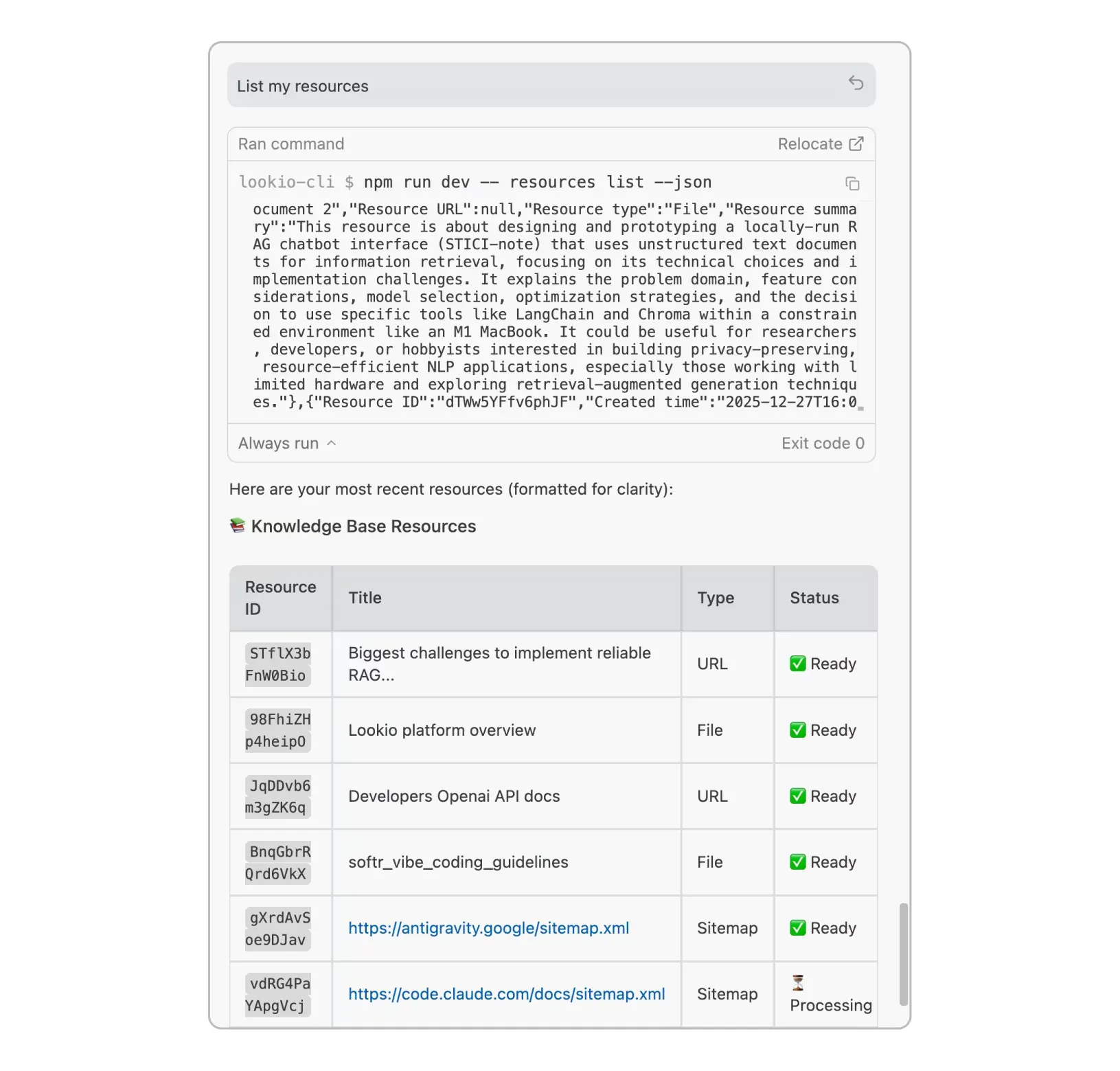
While the Lookio CLI handles the technical, headless heavy lifting, the Lookio MCP server provides the high-level intelligence and tool discovery. Configuring the MCP server (shown below) gives Antigravity the agency to ask questions and retrieve sources without any manual intervention.
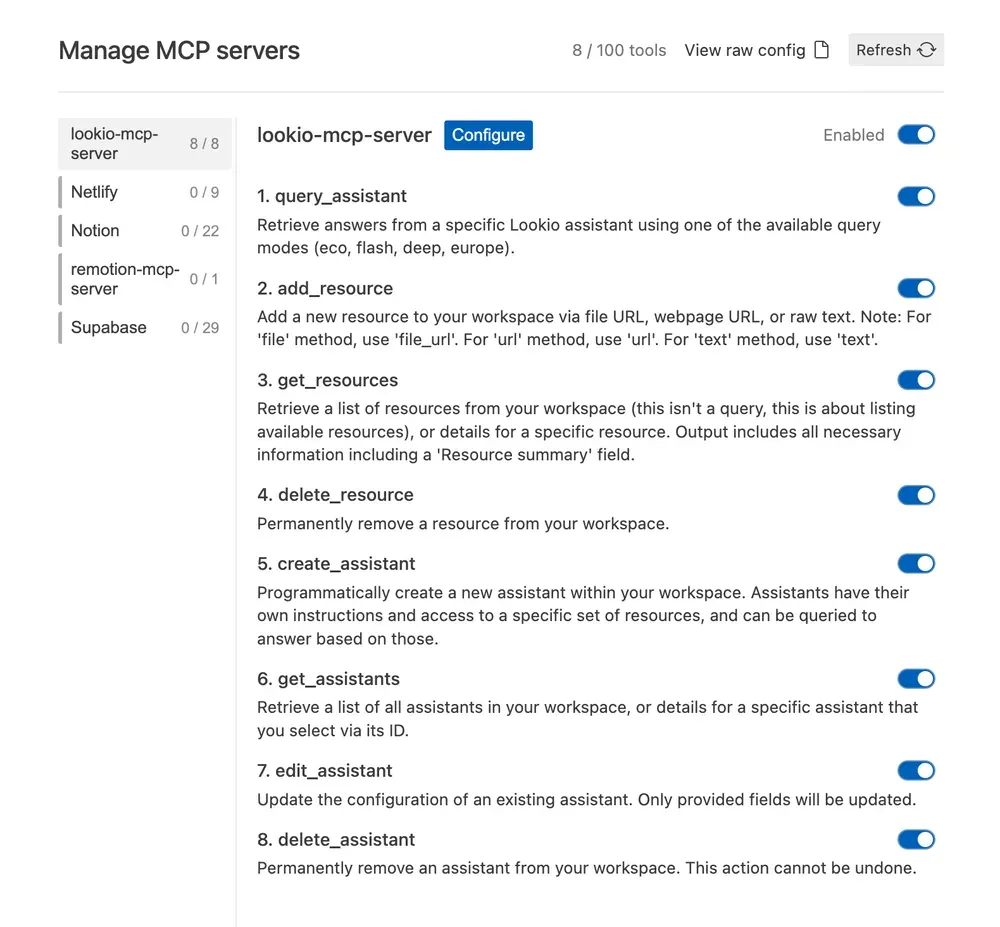
Set it up in 3 minutes
Step 1: Prepare your knowledge base in Lookio
Create a free Lookio account if you haven’t already (100 free credits, no credit card required).
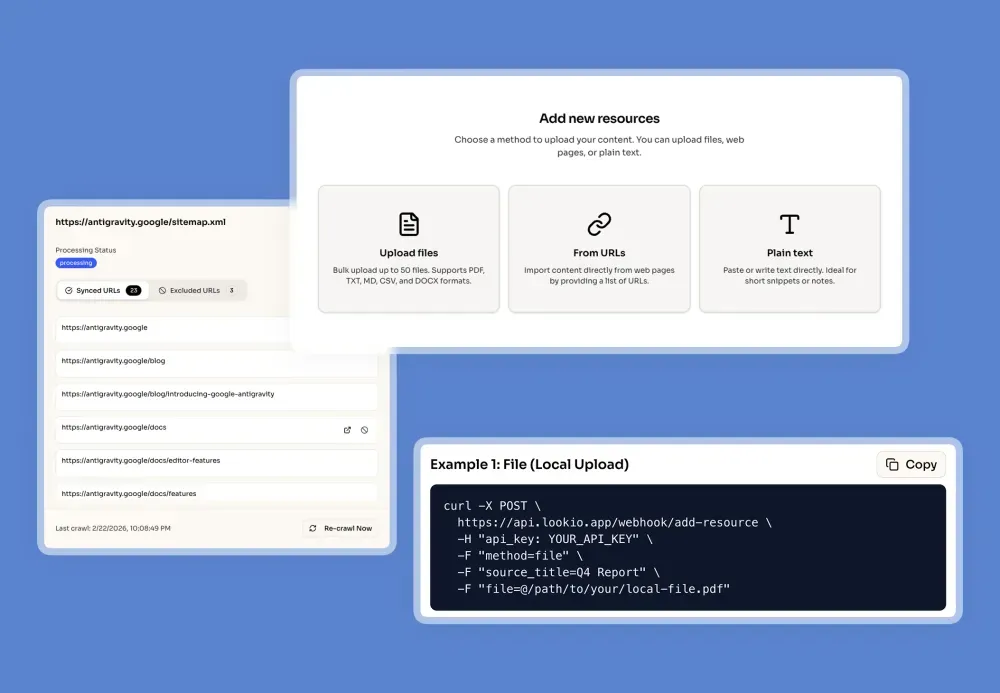
Upload the documentation you want Antigravity to access. Lookio supports a hybrid knowledge base. Unlike tools that only work with one type of content, you can combine multiple sources:
- Files: PDFs, DOCX, TXT, CSV, and Markdown.
- URLs: individual pages or full website sitemaps for automatic syncing.
- Text: paste raw content directly, like architecture decisions or internal notes.
This hybrid approach lets you combine public documentation (synced via sitemap) with internal-only materials into a single, queryable knowledge base.
Create an assistant with instructions tailored to how you want the knowledge retrieved. Assistants are multilingual: you can instruct them to answer in any language.
“You are a technical documentation assistant for [Company]. Provide precise answers based on the provided documentation. Always cite the source document and relevant section. If the answer isn’t in the documentation, say so explicitly. Respond in the same language as the query.”
Step 2: Get your API key
In Lookio, go to API Settings → create a new API key. Copy it.
Step 3: Add the MCP server to Antigravity
You have two options:
Option A: Through the UI (no file editing needed)
- In Antigravity, click the
...menu in the Agent pane - Select MCP Servers → Manage MCP Servers
- Click “View raw config” to open
mcp_config.json - Add the Lookio configuration (see below)
- Click “Refresh” to activate
Option B: Edit the config file directly
Open the config file at:
- Mac/Linux:
~/.gemini/antigravity/mcp_config.json - Windows:
%userprofile%/.gemini/antigravity/mcp_config.json
Add Lookio to the mcpServers section:
{
  "mcpServers": {
    "lookio-mcp": {
      "serverUrl": "https://api.lookio.app/v1/mcp",
      "headers": {
        "api_key": "YOUR_API_KEY"
      }
    }
  }
}
After saving, go back to Manage MCP Servers and click “Refresh” to activate the connection.
Step 4: Verify and test
Once refreshed, you’ll see Lookio listed in your MCP servers panel. Start a new conversation and try:
“Query the Lookio assistant about our authentication flow and the expected token format.”
Antigravity will use the MCP tools to query your knowledge base and bring the answer directly into your IDE conversation: complete with sources.
The Antigravity advantage: full IDE context + company knowledge
What makes Antigravity + Lookio MCP uniquely powerful is the combination of IDE awareness and external knowledge.
Antigravity already knows:
- Which files you have open
- Where your cursor is positioned
- Your project structure and dependencies
- The terminal output from recent commands
Now, with Lookio MCP, it also knows:
- Your documented API specifications
- The business logic and product requirements
- Compliance and security constraints
- Architecture decisions and historical context
This means Antigravity can reason about your code in the context of your documentation. It doesn’t just write syntactically correct code. It writes code that matches your specs, follows your documented patterns, and respects constraints it retrieved from your knowledge base.
A practical example
You’re working on a file and you ask:
“Refactor this service to follow our API versioning guidelines. Query Lookio for the current versioning spec first.”
Antigravity will:
- Query Lookio to retrieve your API versioning documentation
- Read the file you’re currently editing
- Refactor the code to match the documented specifications
- Explain what changes it made and why, citing the documentation
All within a single prompt, all inside your IDE.
Write skills that leverage Lookio
Antigravity supports skills: markdown files loaded into the agent’s context window. Like Claude Code, you can write skills that instruct the agent when and how to use Lookio MCP.
Create a skill file that defines your company’s documentation workflow:
# Company documentation workflow

When implementing features or fixing bugs:

1. Before writing code, query the Lookio assistant (use flash mode)
   to check if there are relevant API specs, product requirements,
   or architecture decisions for the area you're working on.

2. Reference retrieved documentation in your implementation and
   add code comments linking to the source.

3. When implementing a new API endpoint, query for existing patterns
   and naming conventions to maintain consistency.

4. After implementation, query for compliance or security requirements
   that apply to the feature area.

5. For tasks that only concern a subset of the knowledge base, use the
   selected_resources parameter to narrow the query scope to specific
   resource IDs: this focuses the retrieval and improves precision.

Assistant ID to use: YOUR_ASSISTANT_ID
Default query mode: flash
The skill is the playbook; Lookio MCP is the library. Together, they ensure your agent systematically references your documentation instead of guessing.
Pro tip: The
selected_resourcesparameter lets you narrow a query to specific documents without changing the assistant’s permanent configuration. This is perfect for Antigravity workflows where you want to focus on different docs depending on the task at hand.
Use cases
Documentation-driven development
The most natural fit. Antigravity references your documentation while coding:
Pro tip: For maximum precision, organize your knowledge into separate, focused assistants: one for API documentation, one for compliance requirements, and one for product specs. This way, Antigravity queries the right expert for each context.
- “What’s the expected payload format for the inventory endpoint?” → Queries Lookio, then writes the integration
- “What business rules apply to the discount calculation?” → Retrieves the spec, implements accordingly
- “How do our other services handle authentication?” → Finds patterns, applies them consistently
Real-time spec checking
Because Antigravity works interactively in your IDE, you can ask it to verify implementations in real-time:
“Does this function match the product spec? Query Lookio and compare.”
This turns Antigravity into a live documentation checker, catching spec mismatches before they reach code review.
Multi-tool orchestration
Antigravity’s browser control and terminal access combined with Lookio MCP enables powerful multi-step workflows:
“Find the official Stripe webhook documentation page, add it as a resource to my Lookio workspace, create an assistant with access to it, and then query it about signature verification best practices.”
Antigravity orchestrates everything (browsing, uploading, configuring, and querying) in a single conversation.
Content and marketing workflows
Antigravity isn’t just for developers. Marketing and content teams can use it to:
- Generate content informed by the company’s published articles and product docs
- Check messaging consistency against internal brand guidelines stored in Lookio
- Draft documentation that references and links to existing published content
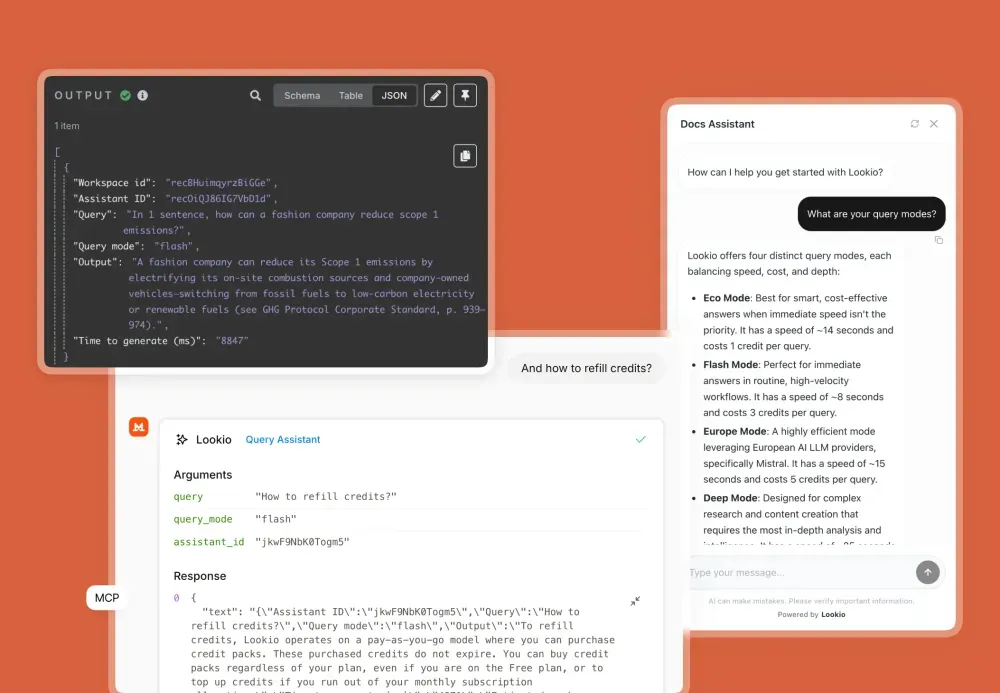
Query modes: match the task to the cost
When Antigravity uses Lookio MCP, control the query mode through your skill instructions:
- Eco Mode (1 credit, ~14s): Simple lookups and quick fact retrieval.
- Flash Mode (3 credits, ~8s): The sweet spot. Fast enough for interactive development and smart enough for nuanced queries.
- Europe Mode (5 credits, ~15s): Sovereign European infrastructure (Mistral); 100% European data residency. All Lookio modes are GDPR-compliant.
- Deep Mode (20 credits, ~25s): Complex research across multiple documents. Use for architecture decisions or cross-cutting analysis.
Every query response also includes an estimated carbon footprint (in gCO₂e), giving you full transparency on the environmental impact of your usage.
Pro tip: Default to Flash mode in your skill file for routine development queries. Switch to Deep mode only when you need the agent to reason across multiple documents: like analyzing how a spec change affects multiple services.
Quick setup summary
| Step | What to do | Time |
|---|---|---|
| 1. Lookio account | Sign up free, upload your docs | 3 min |
| 2. API key | Create in Lookio → API Settings | 30 sec |
| 3. MCP config | Add via UI or edit mcp_config.json |
1 min |
| 4. Refresh | Click “Refresh” in Manage MCP Servers | 10 sec |
| 5. Write a skill (optional) | Define when and how to query | 5 min |
Your IDE-based coding agent now has autonomous access to your company’s full knowledge base: right where you work.