
Mistral Vibe is an open-source coding agent built by Mistral AI that runs directly in your terminal. It reads your codebase, generates code, runs commands, and iterates — powered by Mistral’s own large language models.
What makes Vibe interesting for knowledge retrieval is the European AI angle. Mistral is a French company, and Vibe runs on Mistral models — meaning your queries stay within the European AI ecosystem. For teams operating under GDPR constraints or with a preference for data sovereignty, this matters.
But like every coding agent, Vibe only knows what’s in your repository. It has no access to your internal API documentation, product specifications, compliance requirements, or architecture decisions — unless you connect it to an external knowledge base.
That’s where MCP comes in. Connect Lookio’s MCP server to Vibe, and your coding agent can autonomously query your company’s documentation whenever it needs context.
Here’s how to set it up in under 5 minutes.
Why Vibe needs external knowledge
Vibe reads your project files and understands your code. But the critical context that informs why code should be written a certain way lives outside the repo:
- Internal API documentation — endpoint schemas, expected payloads, error codes, authentication flows
- Product specifications — feature requirements, business logic rules, edge cases
- Regulatory and compliance docs — GDPR constraints, industry standards, security policies
- Architecture decisions — why certain patterns were chosen, what alternatives were considered
- Customer-facing documentation — the product docs your users see, which should stay consistent with the code
Without this context, Vibe writes code that works technically but may not match the actual business requirements or documented architecture.
What MCP gives Vibe
MCP (Model Context Protocol) is the standard that gives AI agents access to external tools. Instead of manually pasting documentation into prompts, MCP lets Vibe discover available tools and use them autonomously.
When you connect Lookio’s MCP server to Vibe, the agent gains the ability to:
- Query your knowledge base — ask questions against your uploaded documents and get precise, sourced answers
- Manage resources — add new documents, list existing ones, or remove outdated content
- Manage assistants — create or configure assistants with specific instructions and resource access
All of this happens within your normal Vibe workflow, directly in the terminal.
Set it up in 3 minutes
Step 1: Prepare your knowledge base in Lookio
Create a free Lookio account if you haven’t already (100 free credits, no credit card).
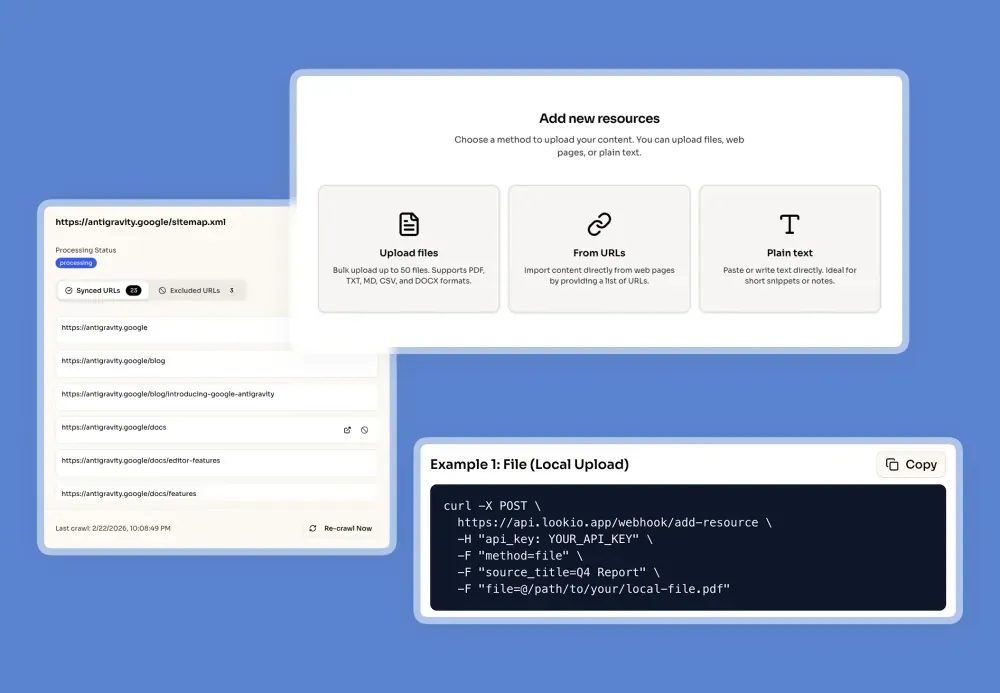
Upload the documentation you want Vibe to access:
- Files — PDFs, DOCX, TXT, Markdown (API specs, product docs, compliance guides)
- URLs — individual pages or full website sitemaps for automatic syncing
- Text — paste raw content directly (architecture decisions, internal notes, Q&A pairs)
Create an assistant with instructions tailored to your workflow:
“You are a technical documentation assistant for [Company]. Provide precise answers based on the provided documentation. Always cite the source document. If the information isn’t in the docs, say so.”
Step 2: Get your API key
In Lookio, go to API Settings → create a new API key. Copy it — you’ll need it next.
Step 3: Add the MCP server to Vibe
Vibe uses TOML for its configuration. Open ~/.vibe/config.toml and add:
[mcp_servers.lookio-mcp]
type = "http"
url = "https://api.lookio.app/v1/mcp"
headers = { "api_key" = "YOUR_API_KEY" }
Scope options:
~/.vibe/config.toml— global, available across all your projects./.vibe/config.toml— project-specific, can be shared via version control- You can also override the config location with the
VIBE_HOMEenvironment variable
That’s it. Start Vibe and it will automatically discover the Lookio MCP tools.
Step 4: Test it
Start a Vibe session and try:
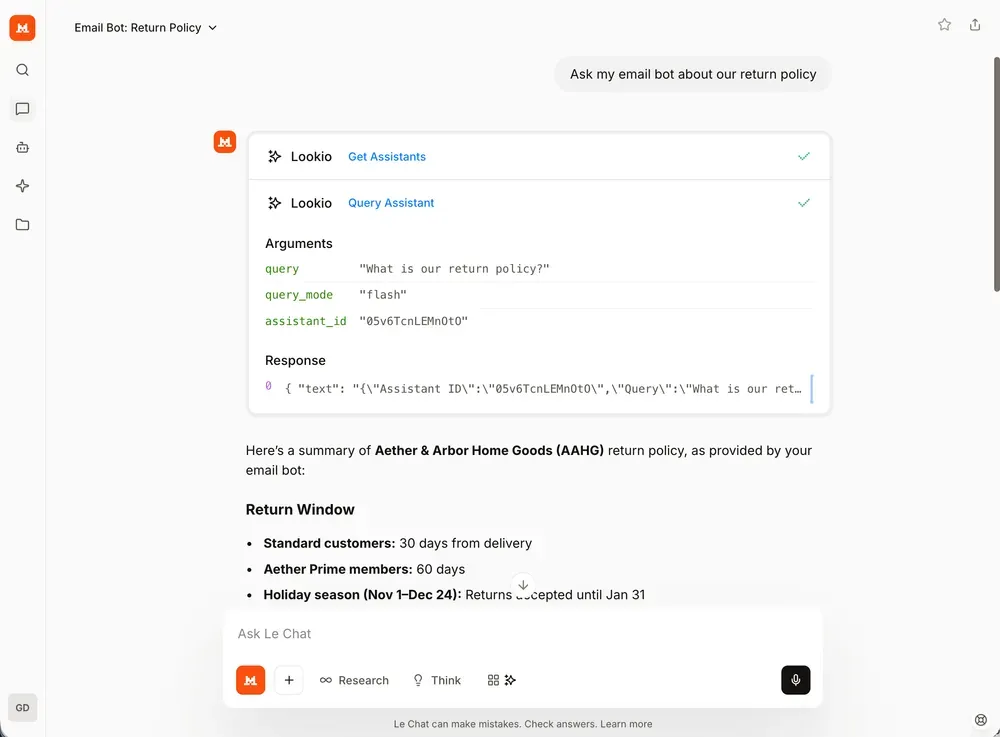
“Query the Lookio assistant about the authentication flow for our payments API.”
Vibe will use the MCP tools to query your knowledge base and return the answer with sources.
Named agents: different knowledge for different workflows
Here’s a feature specific to Vibe that makes it especially powerful with MCP: named agents.
Vibe supports defining multiple named agents in ~/.vibe/agents/, each with their own configuration, instructions, and MCP servers. This means you can create specialized agents for different workflows:
- A “backend” agent that queries your API documentation and architecture specs
- A “compliance” agent that queries regulatory documents before implementing data-handling features
- A “frontend” agent that queries your design system documentation and component library specs
Each agent connects to a different Lookio assistant (with different resources and instructions), giving you targeted knowledge retrieval for each context.
For example, your backend agent could use a system prompt like:
When implementing backend features:
1. Query the Lookio assistant for relevant API specs and patterns
2. Check for database schema documentation before modifying models
3. Verify compliance requirements for any data-handling code

Assistant ID: YOUR_BACKEND_ASSISTANT_ID
Default query mode: flash
While your compliance agent uses a completely different Lookio assistant loaded with regulatory docs.
The European stack: Vibe + Lookio Europe Mode
For teams that care about data sovereignty, combining Vibe with Lookio creates a unique fully European AI stack:
- Vibe runs on Mistral models — built by a French company, processed on European infrastructure
- Lookio’s Europe Mode (5 credits per query) processes your knowledge retrieval using Mistral AI on Sovereign European infrastructure, ensuring 100% European data residency.
- GDPR Compliance: The entire Lookio platform is GDPR-compliant across all modes by design.
This combination is particularly relevant for:
- Companies in regulated industries (finance, healthcare, legal) where European data residency matters
- European companies that need to leverage Sovereign AI in their agents
- Government or public-sector teams with strict data sovereignty requirements
To use this stack, simply instruct your Vibe agent to default to Europe Mode when querying Lookio:
“When querying Lookio, always use europe mode to ensure all processing stays within European infrastructure.”
Use cases for Vibe + Lookio MCP
Documentation-informed development
The core use case. Before writing code, Vibe queries your knowledge base to get the right context:
- “What’s the expected request format for the inventory service?”
- “What are the business rules for the discount calculation?”
- “How do our other endpoints handle rate limiting?”
Spec-driven code review
Ask Vibe to review your implementation against documented requirements:
“Review this module and check whether the implementation matches the product spec for user permissions. Query Lookio for the requirements.”
Knowledge-augmented tasks
Because Vibe has full MCP capabilities, it can also build your knowledge base as part of a task:
“Find the official OpenAPI spec for the Stripe webhooks API, add it as a resource to my Lookio workspace, and then query it for the best practices on handling idempotency.”
Query modes
Control the query mode through your agent instructions to balance cost and quality:
- Eco Mode (1 credit, ~14s): Quick lookups, simple fact retrieval. Great for routine checks.
- Flash Mode (3 credits, ~8s): The sweet spot for most development queries — fast and smart.
- Europe Mode (5 credits, ~15s): Sovereign European infrastructure (Mistral); 100% European data residency. All Lookio modes are GDPR-compliant.
- Deep Mode (20 credits, ~25s): Complex research across multiple documents.
Pro tip: If you’re already using Vibe for the European AI angle, default to Europe Mode in your agent instructions. The extra 2 credits per query (vs Flash) is a small price for full data sovereignty.
Quick setup summary
| Step | What to do | Time |
|---|---|---|
| 1. Lookio account | Sign up free, upload your docs | 3 min |
| 2. API key | Create in Lookio → API Settings | 30 sec |
| 3. MCP config | Add to ~/.vibe/config.toml |
1 min |
| 4. Test | Start Vibe, ask a knowledge question | 30 sec |
| 5. Named agents (optional) | Create specialized agents in ~/.vibe/agents/ |
10 min |
Your coding agent now has autonomous access to your company’s full knowledge base — with the option of keeping everything within European infrastructure.