
Claude Code is quickly becoming the go-to coding agent for developers who want to ship faster. You describe what you need, it reads your codebase, writes the code, runs tests, and iterates — all from the terminal.
But there’s a gap. Claude Code is brilliant at understanding your code, but it knows nothing about your company’s knowledge. Your internal API documentation, product specs, compliance requirements, onboarding guides, architecture decisions — none of that lives in your codebase. And without it, Claude Code is guessing where it should be referencing.
The fix: connect Claude Code to a RAG-powered knowledge base via MCP, so it can autonomously query your company’s documentation whenever it needs context.
This article shows you how to set it up with Lookio in under 5 minutes.
Why Claude Code needs more than just your codebase
Claude Code already reads your project files, understands your folder structure, and can follow coding conventions. That’s powerful — but it only covers what’s in your repo.
Here’s what it can’t access on its own:
- Internal API documentation — endpoint schemas, expected payloads, error codes, authentication flows
- Product specifications — feature requirements, business logic rules, edge cases documented outside the code
- External regulatory docs — compliance requirements, industry standards, legal constraints that inform how features should be built
- Architecture Decision Records (ADRs) — why certain patterns were chosen, what was tried and abandoned, historical context
- Onboarding documentation — how systems connect, deployment procedures, environment setup guides
- Customer-facing docs — the product documentation your users see, which should stay consistent with the code
Without this context, Claude Code makes reasonable assumptions — but assumptions aren’t the same as referencing the actual spec. The result: code that works technically but doesn’t match the business requirements, or implementations that contradict your documented architecture.
What MCP does for Claude Code
MCP (Model Context Protocol) is the standard that gives AI agents access to external tools. Instead of you manually copy-pasting documentation into every prompt, MCP lets Claude Code discover and use tools autonomously.
When you connect a Lookio MCP server to Claude Code, the agent gains the ability to:
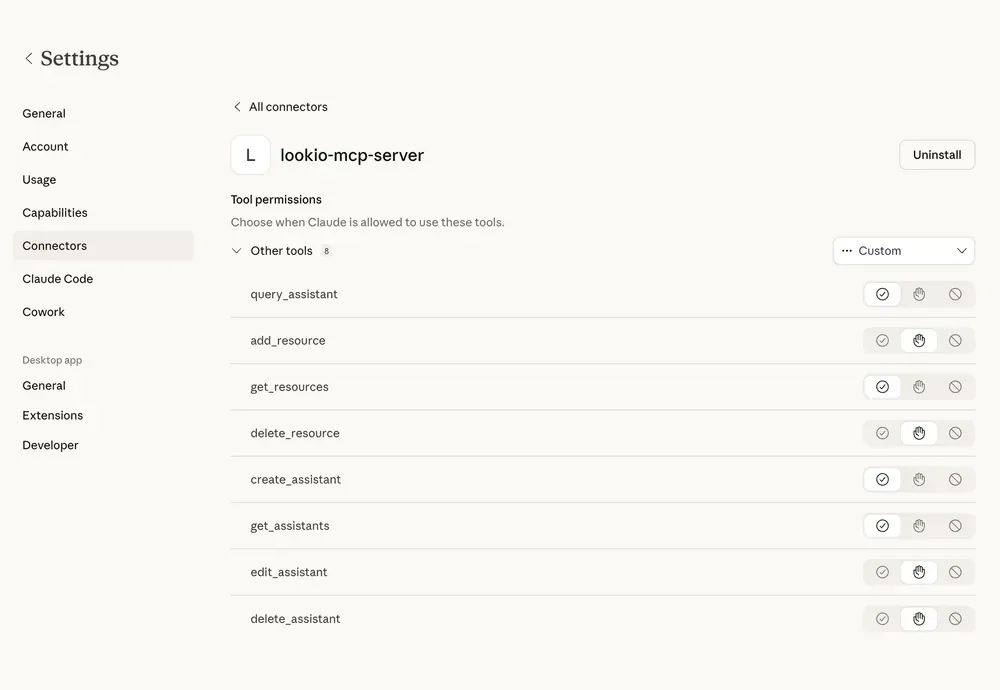
- Query your knowledge base — ask questions against your uploaded documents and get precise, sourced answers
- Manage resources — add new documents, list existing ones, or remove outdated ones
- Manage assistants — create specialized assistants with specific instructions and resource access
All of this happens within your normal Claude Code workflow. You don’t switch tools, you don’t open a browser, you don’t copy-paste. Claude Code decides when it needs information and retrieves it.
Set it up in 2 minutes
Step 1: Prepare your knowledge base in Lookio
If you haven’t already, create a free Lookio account (100 free credits, no credit card).
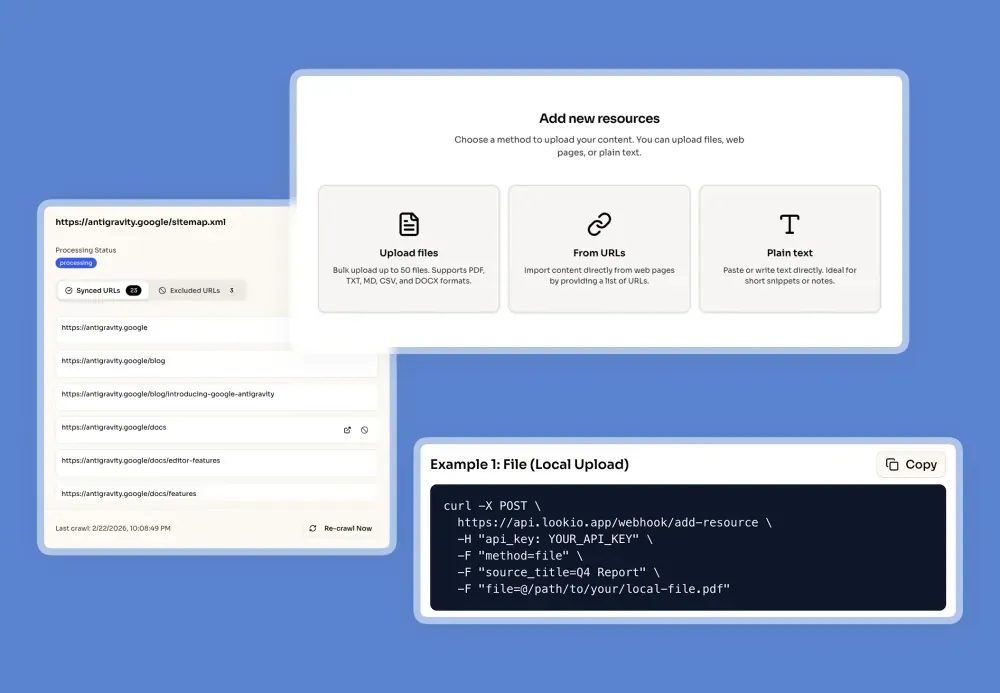
Upload the documentation you want Claude Code to access:
- Files — PDFs, DOCX, TXT, Markdown (API specs, product docs, compliance guides)
- URLs — individual pages or full website sitemaps for automatic syncing
- Text — paste raw content directly (architecture decisions, internal notes, Q&A pairs)
Create an assistant with instructions tailored to how you want the knowledge retrieved. For example:
“You are a technical documentation assistant for [Company]. When queried, provide precise answers based on the provided documentation. Always include the source document and section. If the answer isn’t in the documentation, say so explicitly.”
Step 2: Get your API key
Go to API Settings in Lookio and create an API key. Copy it — you’ll need it in the next step.
Step 3: Add the MCP server to Claude Code
You have two options:
Option A: CLI command (fastest)
claude mcp add --transport http lookio-mcp https://api.lookio.app/v1/mcp \
  --header "api_key: YOUR_API_KEY"
Option B: Edit the config file directly (recommended)
Open ~/.claude.json and add Lookio to the mcpServers section:
{
  "mcpServers": {
    "lookio-mcp": {
      "serverUrl": "https://api.lookio.app/v1/mcp",
      "headers": {
        "api_key": "YOUR_API_KEY"
      }
    }
  }
}
Scope options:
~/.claude.json— user scope, available in all your projects.mcp.json(in your project root) — project scope, shared with your team via version control
For company-wide documentation, user scope is usually the right choice. For project-specific docs, use project scope.
Step 4: Verify it works
Run claude mcp list to confirm the server is connected. Then start Claude Code and ask it something like:
“Query the Lookio assistant about the authentication flow for our payments API.”
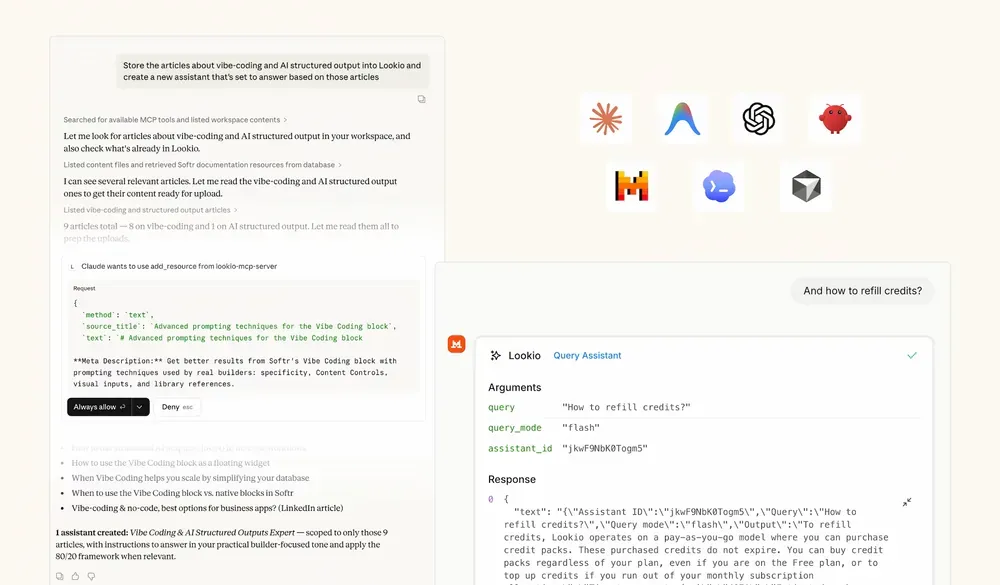
Claude Code will use the MCP tools to query your knowledge base and return the answer — with sources.
The power move: combine skills with RAG
Claude Code has a native feature called skills — markdown files that get loaded directly into the agent’s context window. Skills are great for short, specific instructions: coding standards, workflow steps, formatting rules.
But skills are not designed for large knowledge bases. You wouldn’t put a 200-page API specification or your entire docs site as a skill — the agent would be overwhelmed, accuracy would drop, and it would burn tokens fast.
The best setup combines both:
- A skill defines the workflow — how and when to use Lookio
- Lookio MCP provides the knowledge — the actual documentation to retrieve from
Example: a developer skill that uses Lookio
Create a skill file (e.g., .claude/skills/company-docs.md) with instructions like:
# Company Documentation Workflow

When implementing features or fixing bugs:

1. Before writing code, query the Lookio assistant (use flash mode)
   to check if there are relevant API specs, product requirements,
   or architecture decisions for the area you're working on.

2. When the query returns relevant documentation, reference it
   explicitly in your implementation and add a code comment linking
   to the source.

3. If you're implementing a new API endpoint, query for existing
   endpoint patterns and naming conventions to maintain consistency.

4. After implementation, query for any compliance or security
   requirements that apply to the feature area.

Assistant ID to use: YOUR_ASSISTANT_ID
Default query mode: flash
This way, Claude Code knows when to reach for your documentation, how to query it, and what to do with the results. The skill is the playbook; Lookio MCP is the library.
Use cases: developers and beyond
For developers (the primary use case)
This is where the combination is most powerful. A developer working with Claude Code can:
- Reference internal API docs while implementing integrations — “What’s the expected request format for the inventory service?”
- Check product specs before building a feature — “What are the business rules for the discount calculation?”
- Pull compliance requirements during implementation — “What data privacy constraints apply to user profile endpoints?”
- Look up architecture decisions — “Why did we choose event sourcing for the orders domain?”
- Verify consistency — “How do our other endpoints handle pagination?”
Instead of context-switching to Confluence, Notion, or a shared Google Drive, the knowledge comes to the developer inside their coding flow.
For marketers using Claude Code
An increasingly common pattern: marketing teams using Claude Code (or Claude in general) to power content and strategy workflows. With Lookio MCP, they can:
- Generate content that references the company’s actual product documentation and published articles, ensuring accuracy
- Pull insights from past articles to inform new content — querying what’s already been written on a topic before drafting
- Maintain messaging consistency — the assistant can surface the approved language and positioning from internal docs
- Build AI-powered content pipelines where Claude Code orchestrates research, drafting, and fact-checking against the knowledge base
For content teams, writing a skill that instructs Claude Code to “Always query the Lookio assistant for existing insights on the topic before writing a new section” turns your past content into a compounding asset.
Query modes: match the task to the cost
Not every query needs the same level of depth. When Claude Code uses Lookio MCP, you can control which query mode is used — either through your skill instructions or by telling the agent directly.
- Eco Mode (1 credit, ~14s): Quick lookups, simple fact retrieval. Best for batch tasks where speed isn’t critical.
- Flash Mode (3 credits, ~8s): The sweet spot for most development workflows. Fast enough for real-time use, smart enough for nuanced questions.
- Deep Mode (20 credits, ~25s): Complex research questions that need the agent to reason across multiple documents. Use for architecture decisions or in-depth analysis.
Pro tip: In your skill file, default to Flash mode for routine queries and instruct the agent to switch to Deep mode only for complex, multi-document research questions. This keeps costs low without sacrificing quality when it matters.
What Claude Code can do with the full Lookio MCP
The Lookio MCP server mirrors the entire Lookio API, which means Claude Code doesn’t just query — it can also manage your knowledge base:
- Add resources — found a useful external doc? Tell Claude Code to add it to your workspace
- Create assistants — need a specialized assistant for a new project? Claude Code can set it up with the right context and resource access
- List and organize — ask Claude Code to show you what’s in your workspace, which assistants exist, what resources they access
A real-world example
Imagine this prompt:
“Find the top 5 documentation pages about OAuth 2.0 best practices, add them as resources to my Lookio workspace, create an assistant called ‘Auth Expert’ with access to those resources, and then query it about refresh token rotation patterns.”
Claude Code orchestrates all of this in one go — discovering URLs, uploading them, creating the assistant, and running the query. No context switching, no manual steps.
Full setup summary
| Step | What to do | Time |
|---|---|---|
| 1. Lookio account | Sign up free, upload your docs | 3 min |
| 2. API key | Create in Lookio → API Settings | 30 sec |
| 3. MCP config | Add to ~/.claude.json or .mcp.json | 1 min |
| 4. Verify | Run claude mcp list | 10 sec |
| 5. Write a skill (optional) | Define when and how to query | 5 min |
From there, every Claude Code session has access to your company’s full knowledge base — without you having to think about it.