API keys
Create, limit, rotate and revoke the workspace API keys that authenticate the REST API, the CLI and MCP, and review personal connections.
An API key gives a script, an automation or a server access to your workspace. It belongs to the workspace, not to a person, so it keeps working when someone leaves.
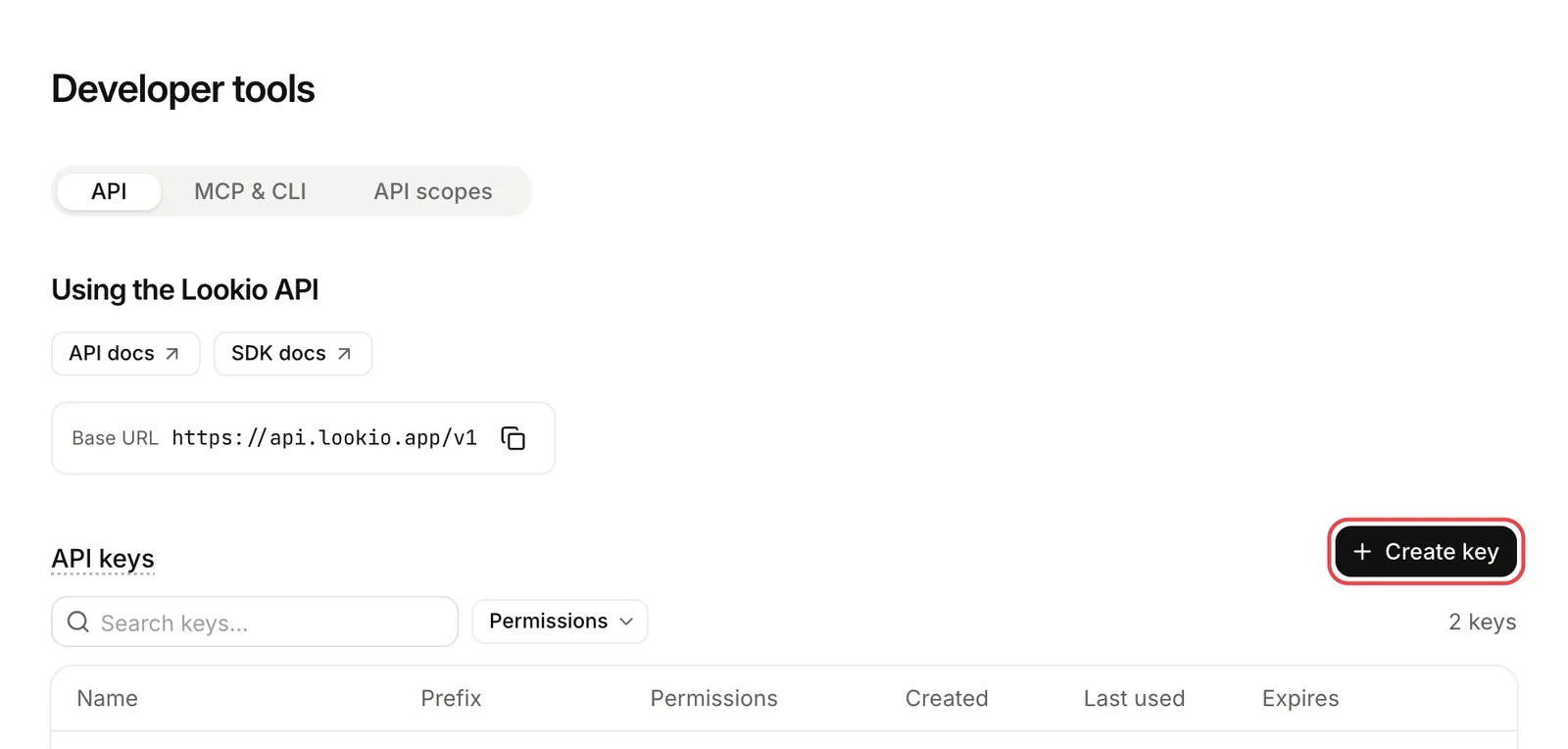
Open Developer tools in the sidebar, then the API tab. Only admins can create, rotate and revoke keys. Members can only read the page.
Create a key
Choose Create key and name it. The default is Full access. Choose a smaller preset when the key needs less.
| Preset | Scopes |
|---|---|
| Ask questions | account:read, assistants:read, query |
| Read only | account:read, usage:read, resources:read, assistants:read |
| Editor | The read-only scopes, plus resources:write, assistants:write and query. It deletes no resource and no assistant. |
| Full access | Every scope, including those that are not active yet. |
To pick scopes one by one, open Advanced. Authentication explains each scope.
For a key that only asks questions, use Ask questions and limit it to the assistants your product needs.
You can also:
- Set an expiry: 30, 90 or 365 days, or none.
- Limit the key to some assistants. Such a key uses only those assistants and cannot create assistants.
A key looks like sk_live_.... Lookio shows it once and then keeps only a hash. If you lose it, revoke it and create another. A workspace has at most 10 active keys.
Rotate and revoke
- Rotate creates a new key and stops the old one at once. Copy the new key, then update what used the old one.
- Revoke stops a key at once. You cannot undo it.
- Rename changes the label only. The key does not change.
Personal connections
When someone signs in from the CLI or connects an AI client, Lookio creates a connection for that person. The Connections section lists each one: who approved it, what it may do and its last use. An admin can revoke any connection. A revoked connection stops at once. Its owner can connect again.
A connection has its owner’s permissions. See Members and permissions.
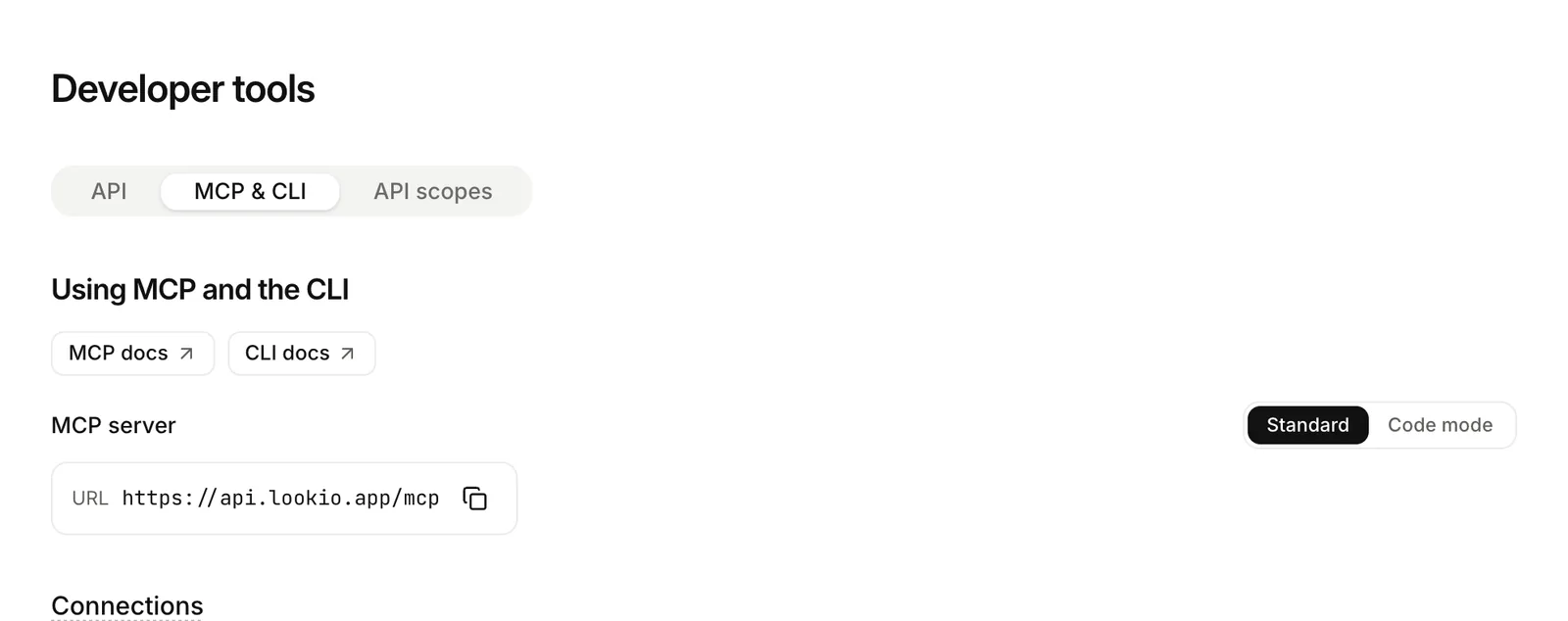
A connection token is valid for 30 days. A refresh token, valid for 90 days, renews it. The CLI does this for you.
API keys or connections
| Use | For |
|---|---|
| An API key | A job, an automation or a backend with no person behind it. |
| A connection | A person’s CLI or AI client. It has their identity and permissions, and keeps their own chats. |