Widget
Widget
Put an assistant on your website for your visitors, as a chat bubble, a chat inside a page or a hosted page, with the allowed domains and spending limits you choose.
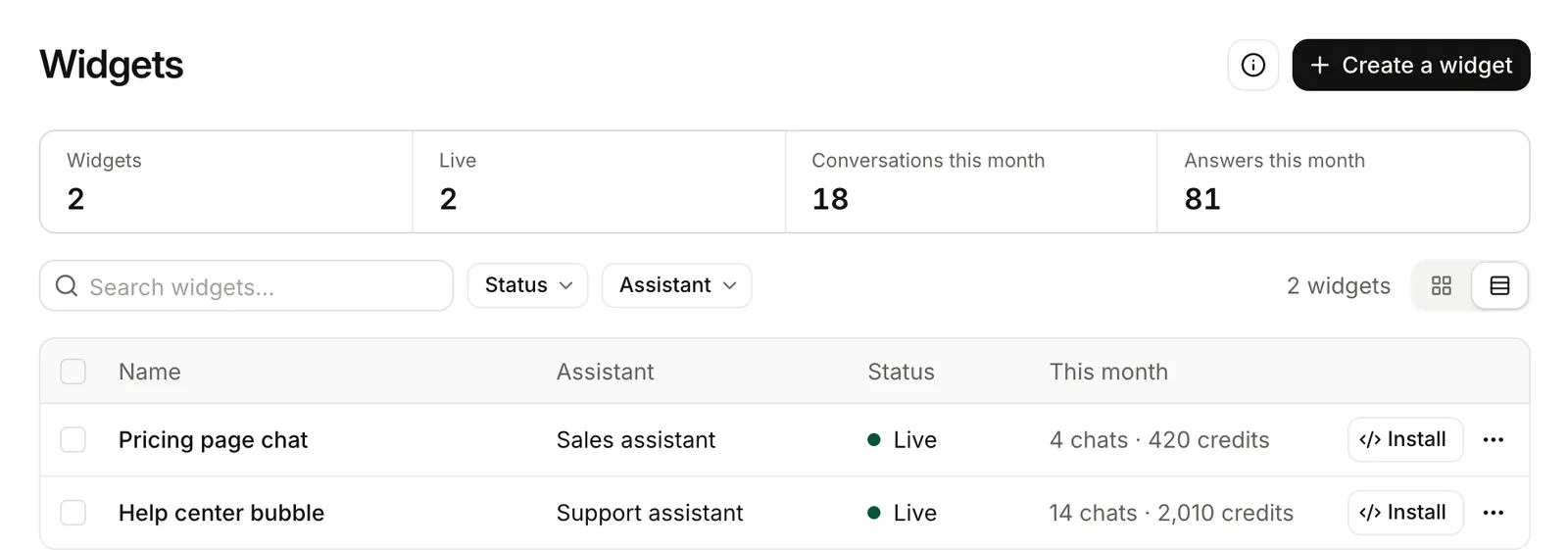
A widget puts one of your assistants on your website. Visitors ask in their own words, without an account. The assistant answers from your resources and shows its sources.
Three formats, one chat
| Format | What visitors see | Good for |
|---|---|---|
| Chat bubble | A button in a corner of every page. It opens the chat in a panel, full screen on phones. | A website, a help center, a docs site. |
| In a page | The chat inside a page, where you place it. | A help page, a docs sidebar, a product page. |
| Hosted page | A page on Lookio, at a link you share. | An email, a QR code, a menu link. No website needed. |
The three formats are the same chat, with the same settings. You turn each one on or off. See Install a widget.
How it works
sequenceDiagram
participant V as Visitor on your site
participant W as Widget frame (widget.lookio.app)
participant L as Lookio
Note over V,W: The browser shows the frame only on your allowed domains
V->>W: Opens the chat
W->>L: Start a session
L-->>W: Short session for this widget only
V->>W: Asks a question
W->>L: Question, with the session
L->>L: Check the visitor's limits and the monthly ceiling
L-->>W: Answer, streamed, with sources
W-->>V: Shows the answer
- You create a widget in Widgets: its name, its assistant and its site.
- You paste one line of code on your site, or turn on the hosted page and share its link.
- A visitor asks. The answer appears word by word, with its sources. Each answer costs the price of the widget’s query mode, also when no source is found. If the assistant reads no resource, the widget does not show.
You control spending: allowed domains, a limit per visitor per hour and per day, a limit per minute for all visitors, and an optional monthly ceiling of credits. See Access and limits.
What the widget never does
- It never puts a key in your page. A visitor gets a short session from Lookio, valid for this widget only.
- It never shows on a site you did not allow. Browsers refuse to show it elsewhere.
- It never tells a visitor about your credits or limits. At a limit, it asks the visitor to come back later.
- It never reads your page. It runs in its own frame and does not see your site’s content or cookies.
- It never gives your page what a visitor did. The random id of a visitor’s past chats stays in the frame’s own storage, separate for each site. With Visitors’ chat history off, each visit starts a new conversation. The visitor limits still apply. Turn history on again and the old chats come back.