Deleting things
What deleting a resource, an assistant, a tag, a conversation, a member or an API key removes, what it keeps and what cannot be undone.
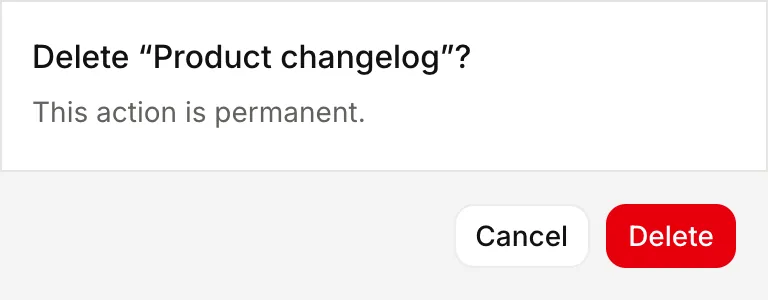
Deleting is permanent. Lookio has no trash.
| You delete | It removes | It keeps |
|---|---|---|
| A resource | The resource, its stored files, every version and the passages indexed from it. | Assistants. Past conversations. |
| An assistant | The assistant and its settings. | Its resources. Its conversations, as read-only history. |
| A widget | The widget, its link and its visitors’ conversations. Pages that embed it stop showing it. | The assistant. What the widget cost, in your usage. |
| A tag | The tag from every resource and every assistant. | The resources. |
| A conversation | The conversation and its messages. | Everything else. |
| A member | That person’s access to the workspace, and their connections. | Their Lookio account. The workspace’s knowledge. |
| An API key | The key’s access, at once. | What the key created. |
Deleting a resource
Lookio first removes the resource’s passages from the search index, then deletes the resource and its files. If the index cleanup fails, nothing changes. Try again in a moment.
You cannot delete a resource that an assistant picked. If the resource is on the list of an assistant in Chosen resources mode, first remove it from that list. If not, you get a conflict error.
An assistant that reads All resources, or a tag, does not block the deletion. It reads one resource fewer.
The words of a deleted resource stop counting against your word allowance. Deleting a website deletes all its pages.
Deleting an assistant
You cannot delete an assistant that a widget uses. First delete the widget or move it to another assistant. The assistant’s conversations stay readable under Deleted assistants in the chat. Nobody can continue them.
Deleting a widget
To stop a widget without losing it, pause it. Deleting a widget needs the right to delete assistants. See Access and limits.
Deleting a tag
An assistant that followed the tag stops reading the resources it got from that tag. Before you delete a tag, check which assistants follow it. Only admins can delete tags.
Deleting a conversation
You can delete your own conversations from the chat. Nobody else can delete them.
An API key deletes the conversations it started with Delete a conversation. They also leave the logs and their figures. If you do not delete a conversation, Lookio deletes it at the end of your plan’s period. See How long it is kept.
Removing a member or revoking a key
A removed member loses access at once, with their CLI logins and MCP clients. A revoked API key stops at once. You cannot undo either. Send a new invitation or create a new key.
Confirmation in the CLI and MCP
The CLI asks you to confirm every delete: resources, assistants, widgets, accesses and tags. With no terminal, it does not wait: it exits with an error that names --force. The MCP tools that delete are marked destructive, and AI clients must confirm with the person first. See Safety and permissions.