Assistants
Create an assistant, write its context and answer guidelines, and choose what it reads with the all, selected or tags knowledge modes.
An assistant answers questions from the resources you give it. Open Assistants, then Create an assistant. The form opens with a name, a context and answer guidelines. Keep them or change them. To let Lookio AI write them, choose Create with AI.
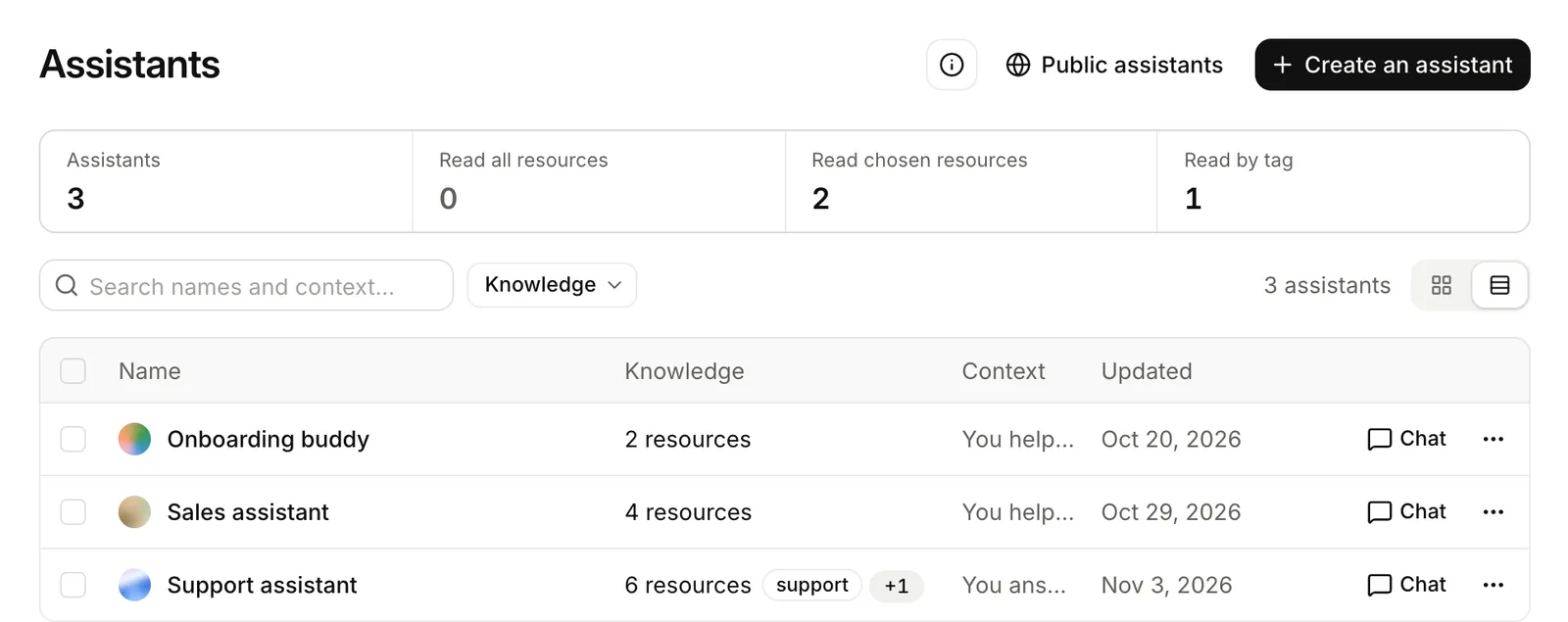
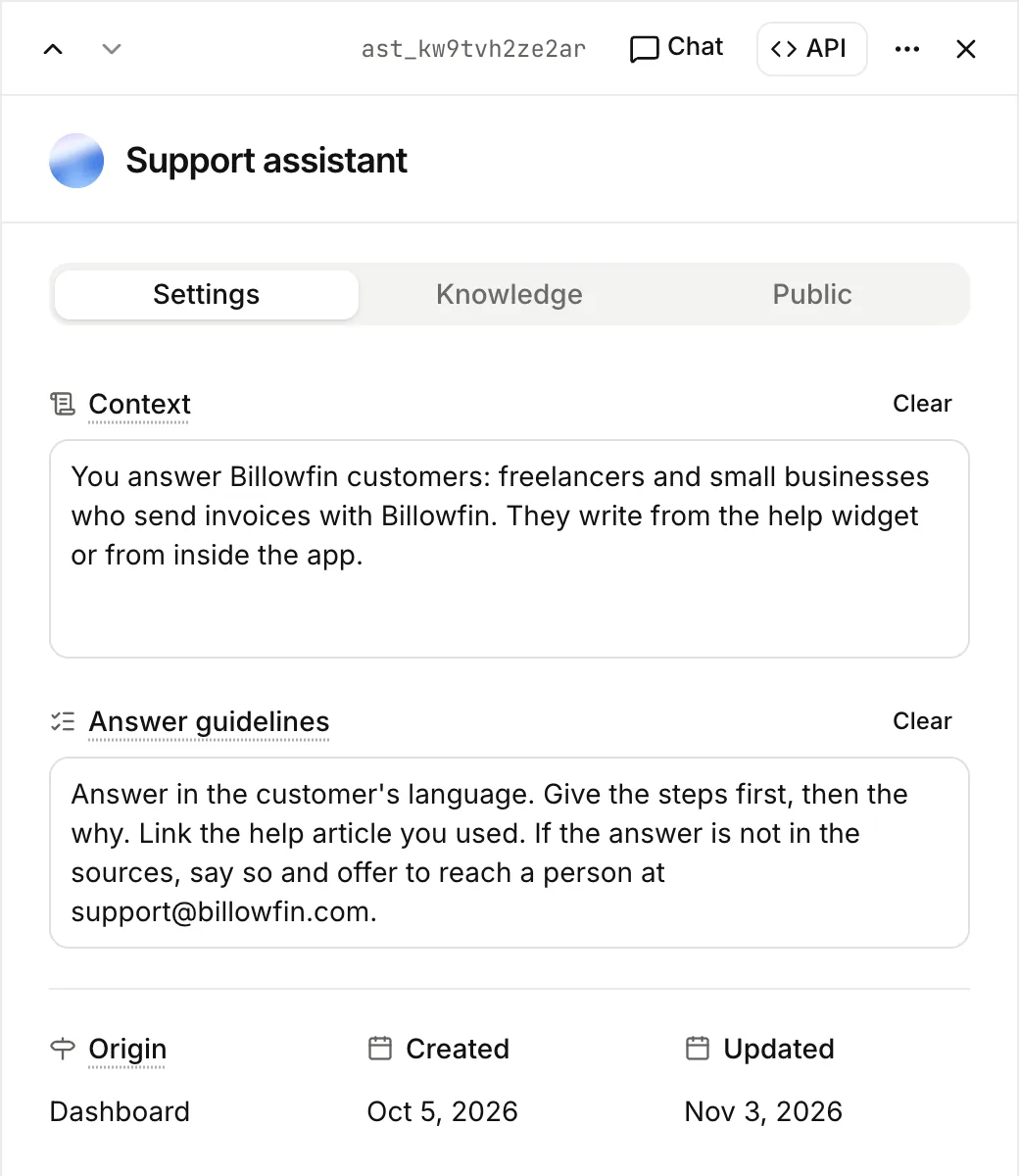
Open an assistant to edit it. Its sheet has three tabs: Settings, Knowledge and Public. Make your changes, then select Save at the bottom of the sheet.
Settings
| Setting | What it is | Limit |
|---|---|---|
| Name | How you recognise it. | 120 characters |
| Context | What the assistant is and who it talks to. | 12,000 characters |
| Answer guidelines | How answers are written: language, format, level of detail. | 12,000 characters |
| Answers from | What it reads. See below. |
Context
Write what the assistant is and who it talks to, in plain words. You do not need to tell it to answer only from the resources. It always does.
You answer Billowfin customers: freelancers and small businesses who send invoices with Billowfin. They write from the help widget or from inside the app.Answer guidelines
Say how the answer should look.
Answer in the customer's language. Give the steps first, then the why. If the answer is not in the sources, say so and offer to reach a person at support@billowfin.com.Keep the two apart. The context says who the assistant is. The guidelines say how its answers look.
What an assistant reads
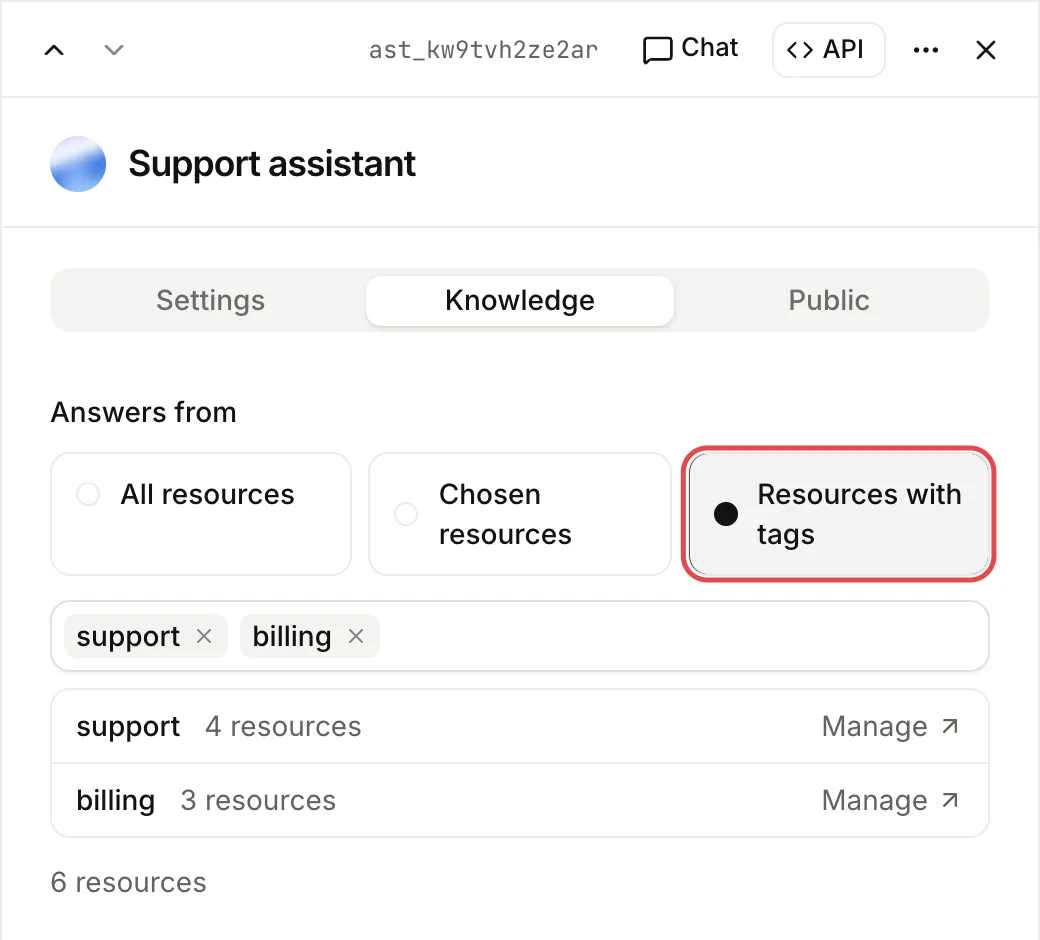
An assistant has one knowledge mode at a time.
| Mode | It reads | Use it when |
|---|---|---|
| All resources | Every resource of the workspace, including those added later. | You have one knowledge base. |
| Chosen resources | Only the resources you pick, up to 200. | An assistant has a narrow job. |
| Resources with tags | Every resource with a tag it follows, now or later. | Resources change often, and you sort them with tags. |
When you change the mode, Lookio keeps your list for the other modes. Go from Chosen resources to Resources with tags and back: your picks are still there.
An assistant answers only from resources that are ready. See Resources.
If you create an assistant through the API without knowledge, Lookio uses tags when you give only tags, and selected in all other cases. Send all to read every resource.
Who can use an assistant
On the Free and Starter plans, every member can use every assistant. On the Pro and Custom plans, an admin chooses which assistants each member may use. See Members and permissions.
You can limit an API key to a list of assistants. Such a key cannot create assistants.
Change or delete an assistant
Edit any field at any time. The next question uses the new settings.
When you delete an assistant, its resources stay. Its conversations stay readable, marked as from a deleted assistant. Nobody can continue them. You cannot delete an assistant that a widget uses. First delete the widget or move it to another assistant. See Deleting things.
Call it from your code
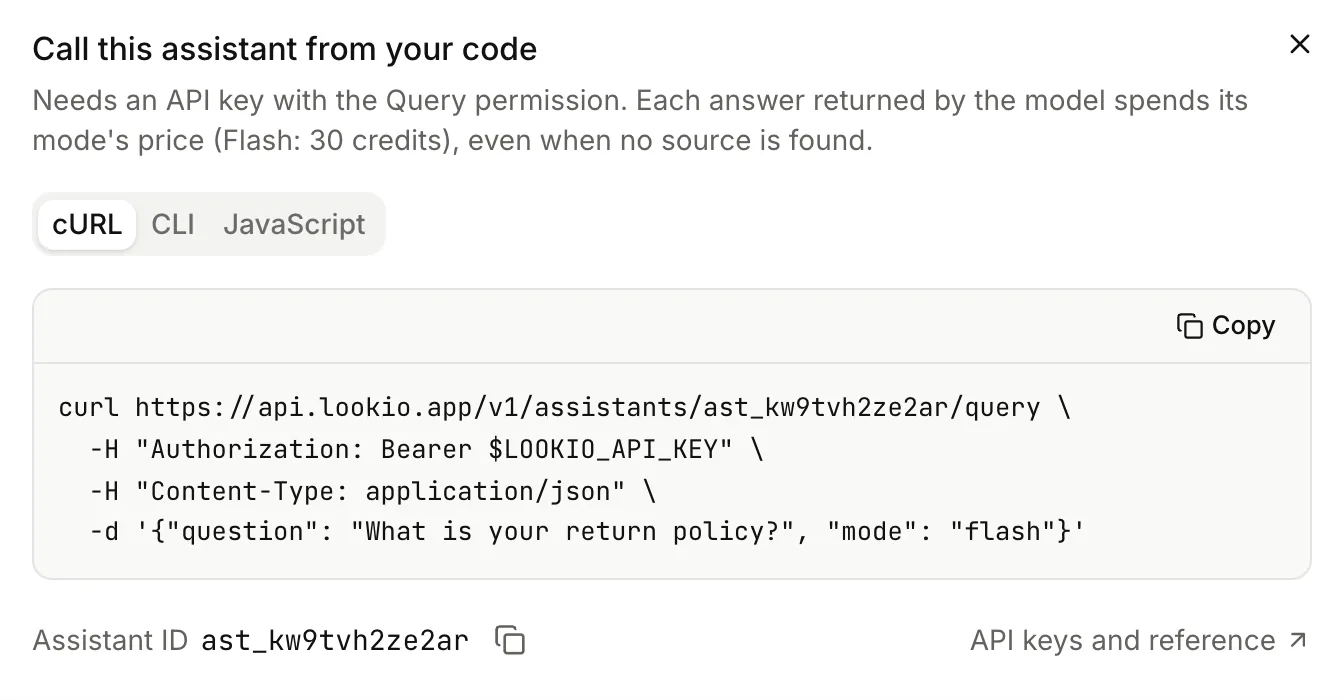
The API button on the sheet gives the call for this assistant, in curl, the CLI or JavaScript.
lookio assistants create --name "Support assistant" --follow-tags support,billing
lookio ask ASSISTANT_ID "How do I issue a credit note?"list_assistants, get_assistant, create_assistant, update_assistant, ask_assistant.