Install a widget
Create a widget, choose its formats, allow your domain, and paste the bubble snippet, the in-page snippet, an iframe or the hosted link.
Create the widget
Name it
Open Widgets, then Create a widget. Only you see the name.
Choose the assistant
A widget has one assistant, with its context and its knowledge.
Allow your domains
Type the sites where the widget may show, for example help.billowfin.com. Separate them with commas. Browsers refuse to show the widget on other sites.
Create it
Select Create widget. The widget is live at once and opens on its Install tab. To pause it, turn Live off. The code can stay on your site.
Choose the formats
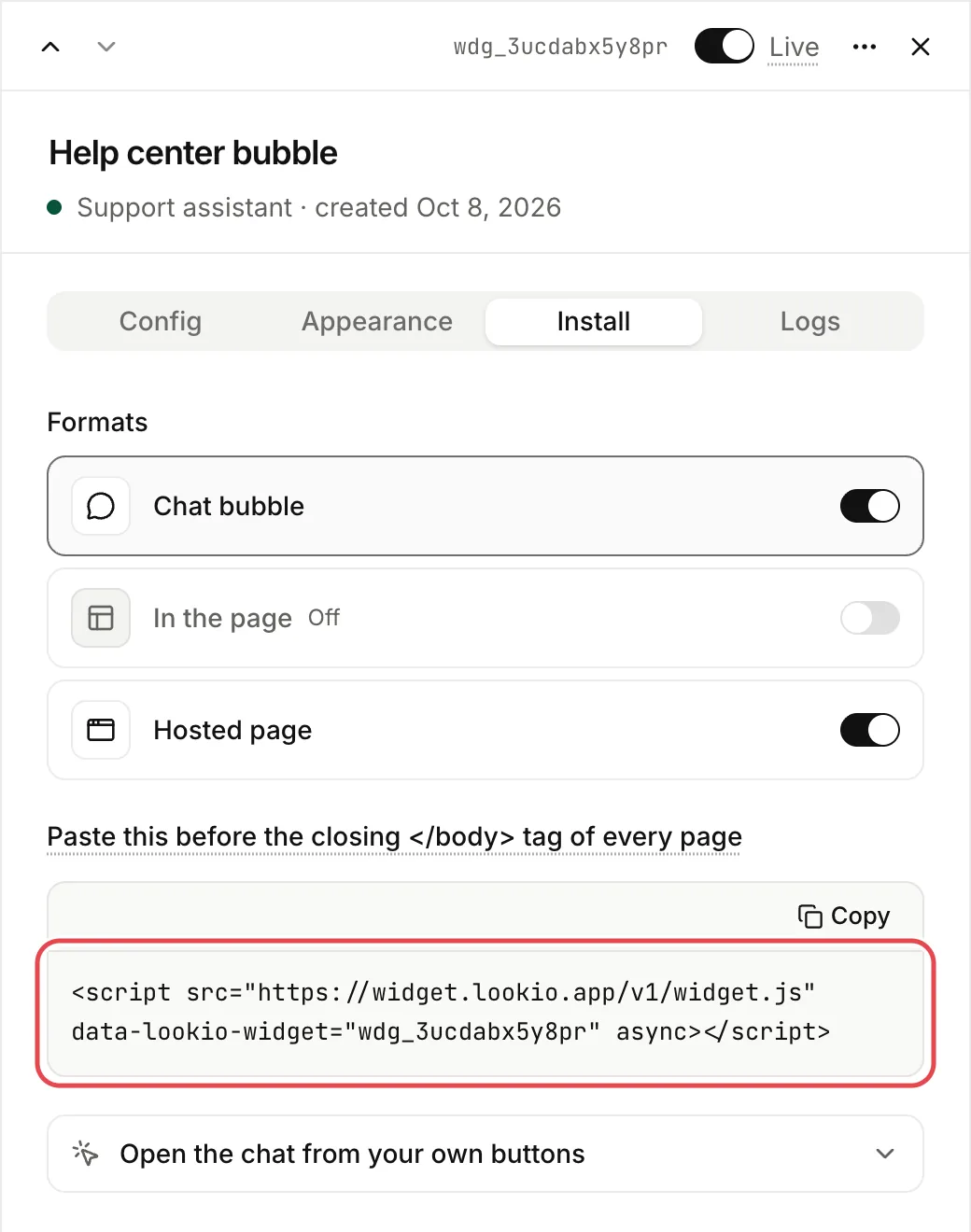
The Install tab lists the three formats: Chat bubble, In the page and Hosted page. Each has its own switch. Select a format to see how to install it.
- A new widget has the chat bubble on and the other two off.
- A format that is off does not show. The in-page chat and the hosted page answer “not found”. Only the preview in the app shows them.
In the API, the CLI and MCP, the three switches are bubble, embed and hosted_page.
Chat bubble
Paste this line before the closing </body> tag on every page, or in the custom code setting of your site builder (Webflow, Framer, WordPress, Shopify, Softr):
<script src="https://widget.lookio.app/v1/widget.js" data-lookio-widget="YOUR_WIDGET_ID" async></script>The Install tab shows the line with your widget’s id.
In a page
Turn on In the page. Put an element where the chat goes, give it a height, and add the script once:
<div data-lookio-embed="YOUR_WIDGET_ID" style="height: 600px"></div>
<script src="https://widget.lookio.app/v1/widget.js" async></script>
The chat fills the element. One script serves several embeds and one bubble on a page.
Without scripts
Some builders refuse scripts but accept iframes. The iframe is the in-page format, so In the page must be on:
<iframe src="https://widget.lookio.app/w/YOUR_WIDGET_ID?embed=1" style="width: 100%; height: 600px; border: 0" title="Chat"></iframe>Hosted page
Turn on Hosted page, then share https://widget.lookio.app/w/YOUR_WIDGET_ID. Anyone with the link can chat, within the visitor limits. When you turn it off, the link answers “not found”.
If nothing shows
Check these three things, in order:
- The format is on, in the Install tab.
- Your domain is allowed, in Allowed domains of the Config tab.
- The widget is live: the Live switch at the top of its sheet.
The browser console of your site says which one. More causes in Widget troubleshooting. With no allowed domain, only the hosted page works.
From the API, the CLI or an agent
Each widget returns its snippets, ready to paste.
lookio widgets create --assistant ASSISTANT_ID --domain help.billowfin.com --mode flashcreate_widget, update_widget, list_widgets.