Tags
Label resources with tags, let assistants follow a tag, and rename, merge or delete tags for the whole workspace.
A tag is a short word on a resource, such as pricing, hr or 2026. Tags sort your list. They also let an assistant read a group of resources, without a pick of each one.
Add tags
Tag a resource when you add it, or later from its sheet. Type in the tag field and press Enter. Pick an existing tag or create a new one.
- A resource has up to 30 tags.
- A tag has 1 to 60 characters. Lookio removes spaces at the start and end. A tag repeated on one resource counts once.
- In the list, filter by tag. To tag several resources together, select them.
Let an assistant follow a tag
Open an assistant, then its Knowledge tab. Choose Resources with tags and the tags it follows. It reads every resource with one of these tags, also the resources you add or tag later.
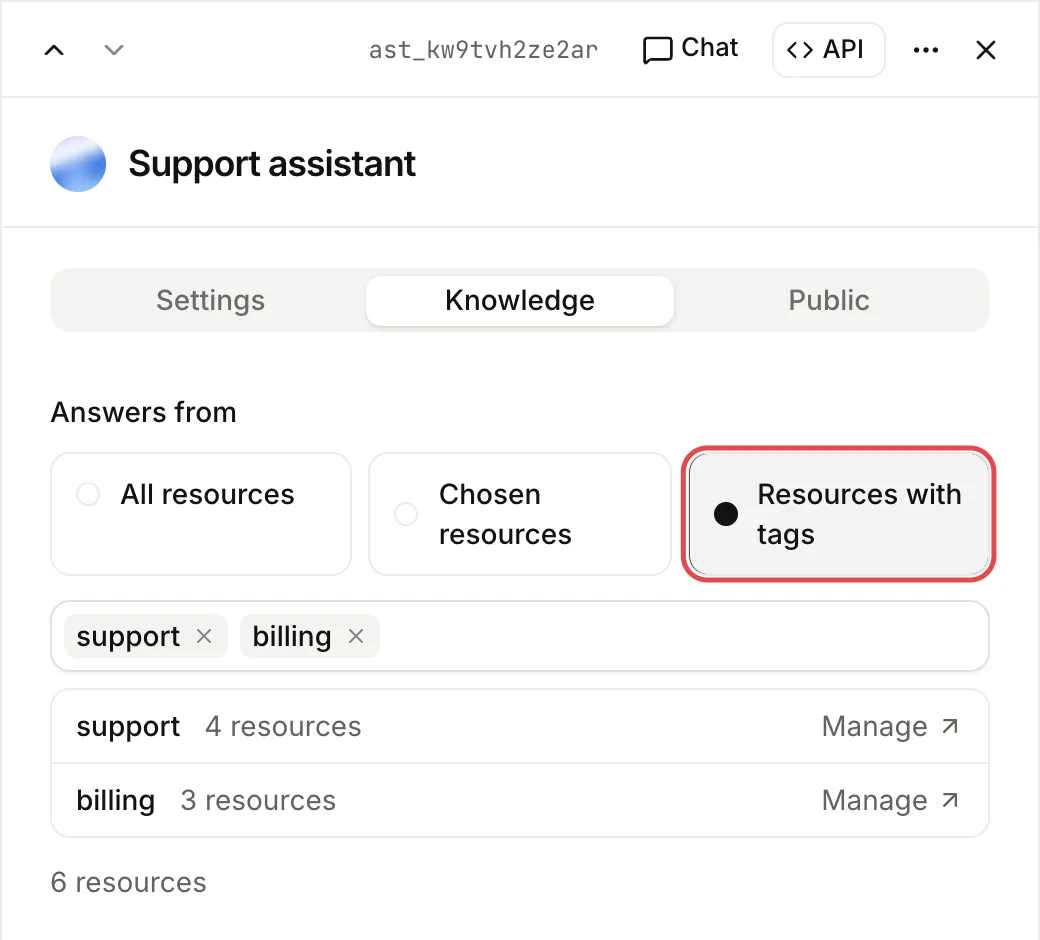
If no resource has the tag, the assistant reads nothing yet.
The workspace tag list
Lookio keeps a list of the workspace’s tags. A tag stays in the list, and in every tag picker, when no resource has it any more. It leaves the list only when you delete it in the workspace settings.
Each tag shows its number of resources and of assistants that follow it.
Rename a tag
A rename changes the tag on every resource and every assistant, in one step. If the new name already exists, Lookio merges the two tags.
Only workspace admins can rename tags. Over the API, you need a personal connection with the admin scope. An API key never manages members or tags. See Rename a tag.
Delete a tag
When you delete a tag, Lookio removes it from every resource and every assistant. The resources stay. An assistant that followed the tag stops reading the resources it got from that tag.
Only workspace admins can delete tags. See Delete a tag.
From the API, the CLI and MCP
There is no tag object. A tag is a word, and the list is what the workspace uses.
lookio tags list, lookio tags rename, lookio tags delete.
list_tags, rename_tag, delete_tag.