Members and permissions
The admin and member roles, the nine permissions an admin can grant on the Pro and Custom plans, assistant access and how permissions apply to API and MCP connections.
Roles
| Role | Can do |
|---|---|
| Admin | Everything, including billing, members, permissions, tags and API keys. |
| Member | Work with knowledge and assistants, within the permissions that an admin gives. A member never manages billing or members. |
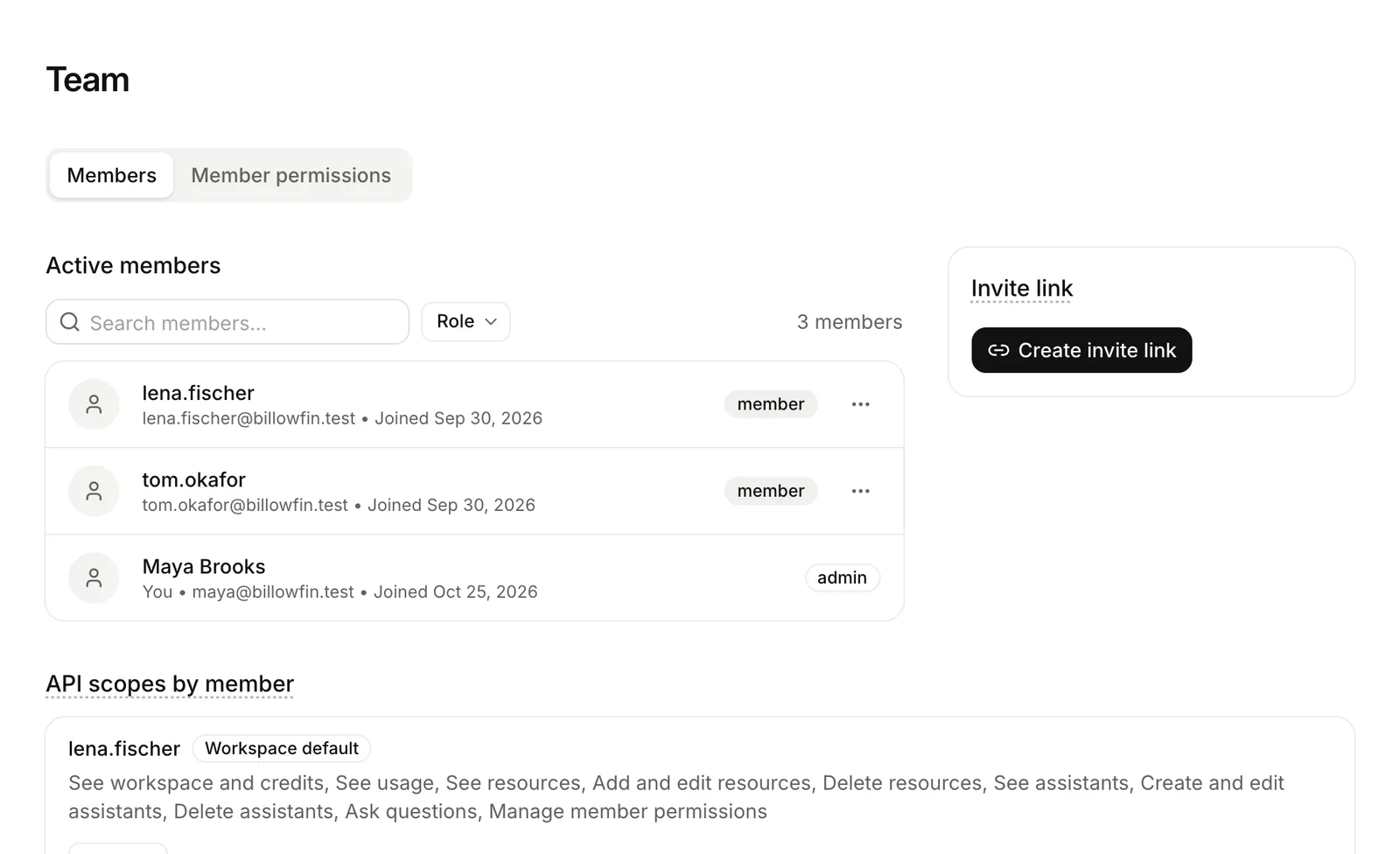
To invite people, an admin creates a join link in the team settings. Anyone with the link can join until it expires. When you remove a member, their access stops at once, with their API and MCP connections.
The Free and Starter plans
On the Free and Starter plans, every member has every permission and sees every assistant. Free has one seat, Starter has unlimited seats.
Permissions on the Pro and Custom plans
On these plans, an admin sets what each member can do, on the Permissions page. A member without permissions can do nothing.
| Permission | Lets the member |
|---|---|
resources_list | View the list of resources, their content, the tag list and the pages of a site. |
resources_create | Create resources. |
resources_edit | Edit resources, re-index them and sync sites. |
resources_delete | Delete resources. |
assistants_create | Create assistants. |
assistants_edit | Edit the assistants they can access, and their widgets. |
assistants_delete | Delete the assistants they can access, and their widgets. |
api | Use the REST API and the CLI. |
mcp | Use Lookio from an MCP client. |
An admin also sets which assistants each member can use: a list, or all of them, future ones too. A member can ask, edit or delete only the assistants on their list.
To ask questions, a member needs no separate permission. If they can use an assistant, they can ask it. The workspace pays.
A change applies at once, also to connections. A permission removed in the app stops on the member’s next CLI or MCP call.
Permissions and the API
A person who connects the CLI or an MCP client has their own permissions. On the Pro and Custom plans, they need api for the REST API and the CLI, and mcp for MCP clients. Lookio removes the scopes that their permissions do not allow. So an AI client never gets a tool that would always be refused.
An API key is different. An admin creates it for the workspace, with its own scopes. It does not follow a member’s permissions. It never manages members or tags. See API keys.
What members may hand to AI clients
An admin can limit what members may give to an AI client or to their CLI login, in the API access settings. This limit applies only to what a member delegates, not to what they do in the app. It does not apply to API keys or to admins. An admin can set an exception for one person.
Manage members from the API
Only admins can list members or change their permissions, with a personal connection that has the admin scope. See List members and Change a member’s permissions. Permissions need the Pro or Custom plan.