Citations
How an answer cites its sources, what a citation contains and how the source field of a resource appears in it.
Every answer comes from passages of your resources, and cites them. In the text, a citation is a number: [1], [2]. The numbers follow the order of the answer: the first source it uses is always [1].
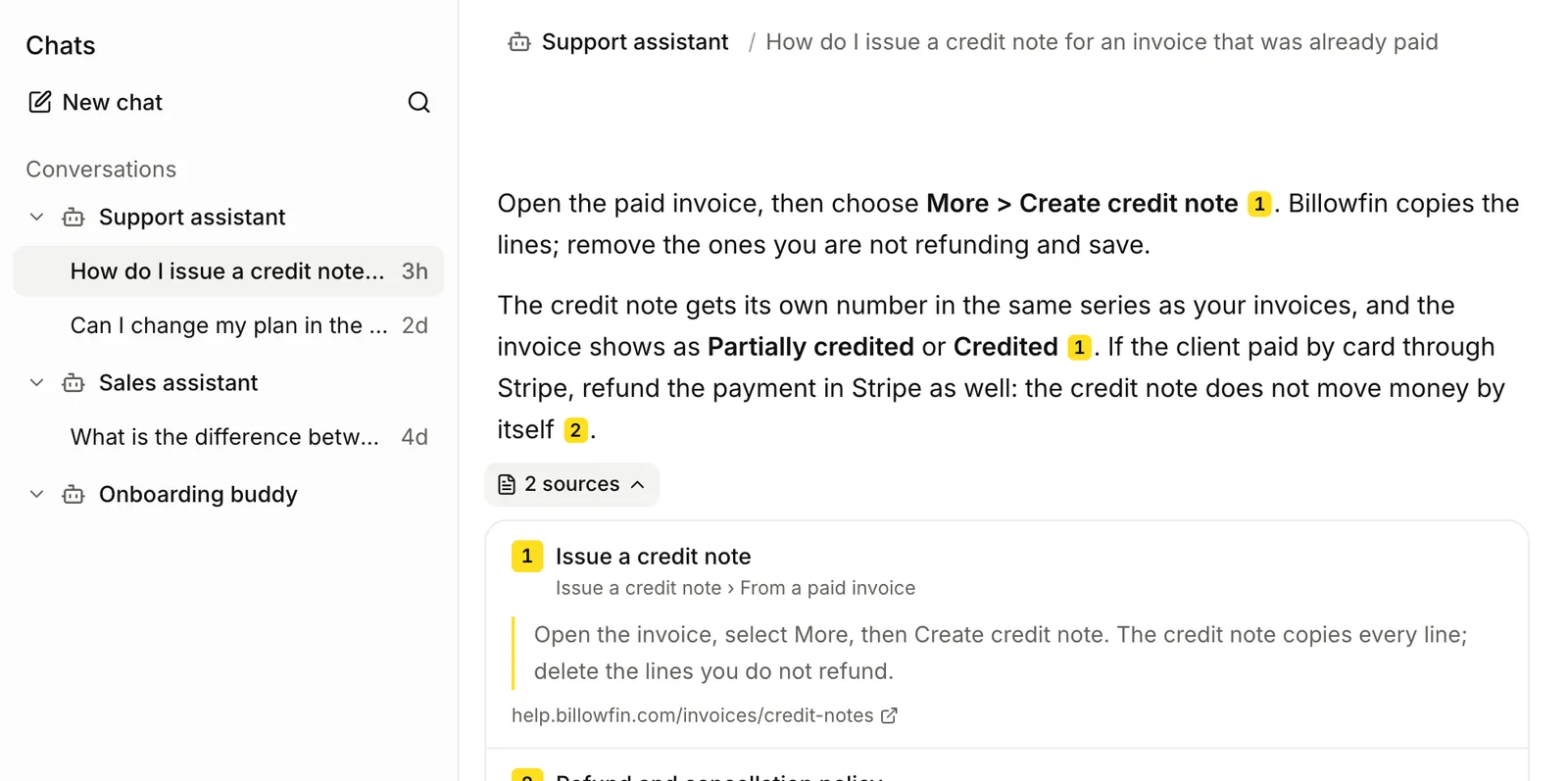
What a citation contains
| Field | Meaning |
|---|---|
n | The number the answer cites it by. |
resource_id and title | The resource the passage comes from. |
text | The passage itself, as indexed. |
section | The headings above the passage, outermost first. |
page | The page, for PDFs, slides and other paged files. |
url | The address, for a web page or a page of a site. |
source | The resource’s Source field, when it has one. |
In the app:
- Hover over a number to read the passage.
- Click a number to open the source address in a new tab, or the resource when there is no address.
- Open sources under the answer to read every passage, with its path (title, headings, page) and its address or source.
Make citations useful
- Give long texts real headings. Section paths come from Markdown headings. With
# Refundsand## Digital goods, a citation gets a path. - Fill the Source field. Set it to the address or reference that a reader must look up, such as “Employee handbook, 2026 edition”. It appears with every citation of the resource.
- Use clear titles. The title is part of every passage and of every citation.
How an answer is built
- Lookio searches the assistant’s resources, by meaning and by keywords.
- It keeps the best passages.
- It gives them to the model, with the question, the assistant’s context and guidelines, and the last messages of the conversation.
- The model answers only from those passages and cites them.
- Lookio returns only the passages that the answer cites.
What to rely on
A citation shows the passage that the answer used, so you can check a claim in seconds. When you pass an answer on, include its citations. When the stakes are high, read the passage.
When the sources do not answer a question, the assistant says so. It does not guess, and the answer has no citation.
In the API
An answer has citations next to answer. See Ask an assistant for the fields. A stored conversation returns the citations of every answer. See Retrieve a conversation.